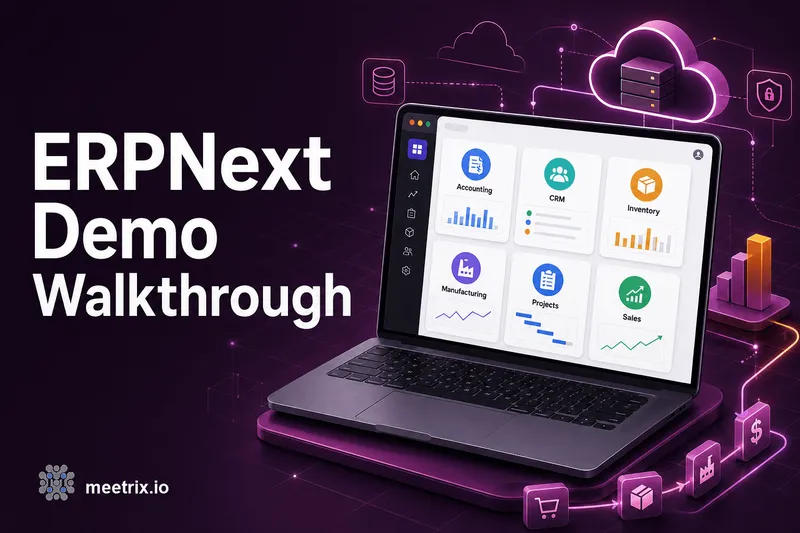
Search "erpnext demo" and you mostly get login pages for other companies' private instances, partner resale sites, or a Wikipedia summary of what ERP software is in general. None of that tells you what actually happens after you install ERPNext yourself. So here's the actual walkthrough: the setup wizard, the first login screen, and the module list you get without paying for a single add-on.
Two ways to see this for yourself. Frappe (the team building ERPNext) runs a free online demo if you just want to click around before committing to anything. Or you deploy your own instance, which is what most businesses end up doing anyway, since a shared trial isn't where you want to keep real invoices and customer data. It's the same reasoning behind running most self-hosted software on AWS instead of a shared cloud trial.
The Setup Wizard Comes First
Whichever path you take, ERPNext doesn't drop you straight into a dashboard. The first thing you see is a setup wizard, and it asks for the basics before it lets you touch anything: your company's legal name, country, currency, and fiscal year start date. Skip any of it and you'll be back here later anyway, since the Chart of Accounts and tax templates depend on the country you pick.
It also offers to load a default Chart of Accounts matched to your country. Take it. Building a chart of accounts from scratch is not a good use of your first ten minutes with new software, and the default templates cover standard business structures fine.
What the wizard actually asks
Company name, country, currency, fiscal year, and a checkbox for whether to enable a domain-specific setup (retail, manufacturing, services, and so on). It takes about five minutes if you have those details on hand.
ERPNext Demo Login and the Workspace
On a fresh AWS AMI install, the default ERPNext demo login credentials are Administrator as username and admin as password. Change this immediately. An internet-facing ERP instance with default credentials is exactly the kind of finding that turns up in a penetration test report.
Once you're in, ERPNext organizes everything into Workspaces, which is really just a sidebar of module groups: Accounting, Selling, Buying, Stock, Manufacturing, Projects, and so on. Each workspace is a landing page with shortcuts, reports, and a "quick entry" list for the things you'll do most in that area. It's not flashy. It's closer to a well-organized filing cabinet than a modern SaaS dashboard, and for an ERP, that's the right call. Nobody wants their invoicing software to have opinions about typography.
Modules You Get by Default
This is the part most "erpnext modules overview" searches are actually after: what's in the box, before you install anything extra. Every module below is documented in detail in the official ERPNext documentation, if you want the full field-by-field reference once you've seen what's here.
Accounting
Invoicing, payment entries, journal entries, bank reconciliation, and financial statements (P&L, balance sheet, cash flow) out of the box. Multi-currency works if your business needs it. This module alone is what most small businesses currently pay a separate SaaS subscription for.
CRM and Sales
Lead capture, opportunity tracking, quotations, and sales orders, feeding directly into the Accounting module so a won deal turns into an invoice without re-entering anything. If you've used a standalone CRM before, the pipeline view will feel familiar; the integration with invoicing is the part standalone CRMs don't give you.
Stock and Purchasing
Warehouse-level inventory tracking, reorder levels, purchase orders, and supplier management. Stock movements post automatically to accounting, so your balance sheet reflects inventory value without a manual sync step.
Manufacturing
Bills of Materials, work orders, and production planning. Not something every business needs, but if you make physical goods, it's there without switching to a separate manufacturing add-on the way some competing ERPs require.
Projects, POS, Quality, Assets, and Support
Rounding out the list: project and task tracking with timesheets, a point-of-sale screen for retail counters, quality inspection checklists tied to manufacturing and stock, fixed asset depreciation schedules, and a helpdesk-style support ticket module. None of these are premium tiers. They're all part of the same install.
A Realistic First Hour
Past the setup wizard, here's what an actual first session looks like: create one customer, one item, and one sales invoice. That single loop touches four modules (CRM, Stock, Accounting, and whichever payment method you pick) and tells you more about whether ERPNext fits your workflow than reading a feature list ever will.
My honest take, having set these instances up for clients: the learning curve is real but front-loaded. The first hour feels like a lot of unfamiliar menus. By the second or third invoice, the pattern clicks, and it stops feeling like software you have to fight.
Demo Limits vs Your Own Instance
The hosted trial is genuinely useful for a first look, but it's not built to be your permanent system. Shared and trial environments get reset, don't guarantee your data survives past the trial window, and won't run on your own domain with your own SSL certificate.
A deployed instance, like the one Meetrix's AWS AMI sets up, is the opposite on every one of those points: your data stays put, it runs on your domain, and SSL is handled automatically if that domain is on Route 53. That's the actual difference between "demo" and "production" here, and it's worth knowing before you start entering real customer data into a trial account.
Deploy Your Own ERPNext
If the module list above covers what your business needs, the next step is deploying an instance you actually keep. Meetrix maintains a pre-configured AWS AMI for ERPNext (currently on version 16.11.0, running on Ubuntu 24.04, tracked on the project's GitHub repo), and our developer guide and deployment walkthrough cover the CloudFormation steps end to end.
Comparing it against another open-source ERP first? We've written a full ERPNext vs Odoo comparison that covers similar ground with a different module philosophy, and we've got the same kind of deployment guide for Odoo below.
Frequently Asked Questions
Is there a free ERPNext online demo I can try right now?
Yes. Frappe (the company behind ERPNext) runs a free online demo at frappecloud.com, no server setup needed. It's a real trial instance though, not a shared sandbox, so don't treat it as a permanent home for your data.
What login do I use the first time I open ERPNext?
Administrator as the username, admin as the password, on a fresh AMI install. Change it immediately after the setup wizard finishes. Leaving the default admin password on an internet-facing instance is the kind of thing that shows up in security audits.
How long does the ERPNext setup wizard actually take?
About five minutes if you have your company details ready: legal name, country, currency, and fiscal year start. It also asks whether to load a default Chart of Accounts, which most small businesses should just accept.
What modules come with ERPNext by default?
Accounting, CRM, Sales, Purchasing, Stock, Manufacturing, Projects, Point of Sale, Quality, Support, and Assets, all in the base install. No paid add-ons or separate modules to buy, unlike most ERPs at this price point.
Is ERPNext actually free, or does the AWS AMI cost money?
ERPNext itself is open-source and free. What you pay for is the compute it runs on. Meetrix's AWS AMI bills by the hour, from $0.019 for a t2.small up to $0.039 for larger instance types, plus a 5-day free trial.
How is the ERPNext demo different from a real production instance?
The hosted trial resets and doesn't carry your data forward reliably. A production instance, like the one you get from the AWS AMI, keeps your data, runs on your domain with SSL, and doesn't disappear when a trial period ends.
Skip the Shared Trial, Run Your Own ERPNext
Deploy a production ERPNext instance on your own domain in minutes with Meetrix's pre-configured AMI, with a 5-day free trial to test it before you commit.
Launch ERPNext on AWS Marketplace