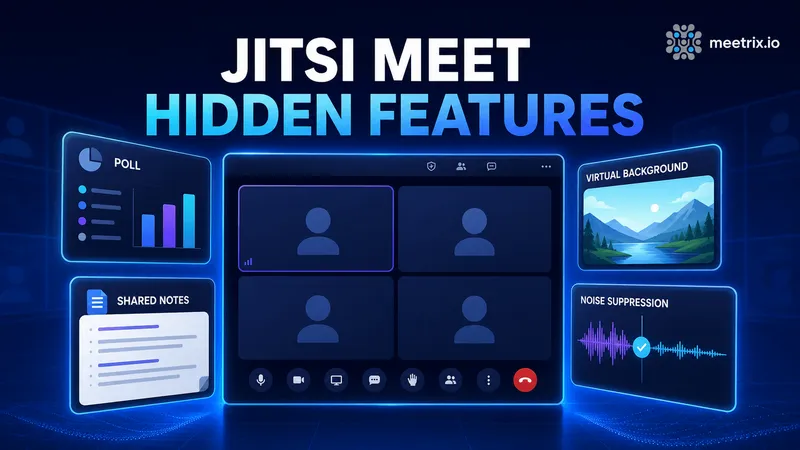
Most Jitsi Meet users know the toolbar: camera, mic, screen share, chat, leave. Fewer know that clicking around the edges of that toolbar turns up a poll builder, a background remover, a shared notepad, and an AI noise filter, none of which are labeled loudly enough to notice on a first pass.
None of these are new additions buried in a beta flag. They've shipped in stable Jitsi Meet for a while now. What varies is whether they're switched on for the server you're using: some run entirely in your browser and just work, others depend on a backend service your admin has to deploy first. Here's what each one actually does, where to find it, and which ones need server-side setup before they'll appear.
Quick way to tell which is which before you go looking: if it lives in a toolbar dropdown, it's almost certainly client-side and just works. If it's tucked in the more-actions menu behind a name like "shared document," someone on the server side had to turn it on first - and for the server-side pieces, that setup usually happens through JMAP, the Jitsi Meet Admin Panel.
Polls: Quick Votes Without Leaving the Call
Jitsi Meet's poll feature lives inside the Chat panel, not the main toolbar, which is exactly why most people never find it. Open Chat, and you'll see a second tab next to the message list labeled Polls.
- Click the Chat icon in the toolbar.
- Switch to the Polls tab and click Create poll.
- Type a question, add answer options, and send it to the room.
- Everyone in the call gets a notification near the Chat icon and can vote from the same tab.
It's built for a fast show of hands, not a graded quiz. There's no scoring, no timer, no correct-answer marking, and once a poll is posted it can't be edited or deleted, it stays visible for the rest of the meeting. If you're asking whether Jitsi Meet has built-in polls or quizzes: it has polls. Quizzes, with grading and timing, aren't part of the feature.
My take: type the question in a text box first, then paste it into the poll. Fixing a typo mid-vote isn't an option here, and a poll with a garbled question just sits there for everyone to see.
Desktop and browser only, for now
Polls work in the desktop app and in any browser tab running Jitsi Meet. The Android mobile app doesn't expose the Polls tab at all as of this writing, so if a participant is joining from a phone, they won't see the option to vote.
Virtual Backgrounds and Blur
Open the video settings (the small arrow next to the camera icon, or the settings gear) and you'll find Background effects: blur, a handful of preset images, and an option to upload your own. None of this touches your Jitsi server. The segmentation that separates you from your background runs client-side, in your browser, using a MediaPipe segmentation model compiled to WebAssembly with SIMD instructions for speed.
That's a meaningful upgrade from the older TensorFlow.js-based version Jitsi shipped years ago, both in accuracy and in how much CPU it burns. It's also why performance varies so much by device: a background running smoothly on a recent Chrome build on a laptop can stutter on an older machine or a browser without solid WebAssembly support.
If you're self-hosting and want to swap in your own preset background images instead of Jitsi's defaults, they live server-side at /usr/share/jitsi-meet/images/virtual-background, or can be set through dynamicBranding in your deployment's configuration. Blur and custom uploads work regardless, since those don't depend on a preset list at all.
If you have to pick one: blur is the safer default. It's lighter on the CPU than a full image replacement, and it doesn't do the thing where a fast hand gesture briefly turns your ear into part of the wall behind you.
Etherpad: A Shared Notepad Inside the Call
The "Open shared document" option, tucked into the more-actions menu (the three dots in the toolbar), opens an embedded Etherpad, a collaborative text editor everyone in the call can type into at once. It's useful for meeting notes, a running agenda, or a quick collaborative outline that outlasts the chat scrollback.
Unlike polls or noise suppression, this one isn't running in your browser alone. Etherpad is a separate service, and on a self-hosted Jitsi Meet server it has to be deployed and wired up before the button will appear at all. meet.jit.si has it configured out of the box; most self-hosted installs don't.
For Docker installs, bringing it up means running the bundled override file:
docker compose -f docker-compose.yml -f etherpad.yml up -dAnd setting two variables in .env, one for internal Docker networking and one for the public URL clients actually connect to:
ETHERPAD_URL_BASE=http://etherpad.meet.jitsi:9001
ETHERPAD_PUBLIC_URL=https://your-domain.com/p/
Manual installs need the Etherpad service deployed separately and proxied through nginx alongside your existing Jitsi setup, similar in shape to how the whiteboard's backend gets wired in.
Pad content doesn't persist by default
The default Etherpad container doesn't mount a volume, so anything typed into a shared pad lives only in the container's filesystem. Restart or remove the container and the notes are gone. If you need pads to survive redeploys, add a persistent volume for Etherpad's data directory before relying on this for anything you'd miss.
Worth the setup effort if your team actually takes shared notes during calls. Not worth it if "meeting notes" means one person typing in a personal doc that never gets shared, which, honestly, is most teams.
Noise Suppression
The audio settings menu, next to the microphone icon in the toolbar, has a Noise Suppression toggle. Turn it on and Jitsi filters out keyboard clatter, fan noise, and background chatter using RNNoise, a small, fast model that blends classic signal processing with a lightweight neural net, running as a WebAssembly audio worklet in your browser.
Like virtual backgrounds and polls, this one needs nothing from your server. It ships inside the Jitsi Meet web app itself, so it works identically on meet.jit.si and on a self-hosted deployment, with zero config.js changes required to turn it on for yourself. Admins who want to tune provider settings or logging for it can do so in config.js, but the default toggle works without touching anything server-side.
Don't expect it to work miracles. It's good at steady background noise, a fan, a keyboard, road noise through a window, not so good at another person talking in the same room. Still, given it costs nothing to turn on and every open-plan office has at least one loud keyboard, I'd leave it on by default rather than reach for it only when a call turns bad.
A Few More Worth Knowing
Once you've found the four above, the rest of Jitsi's less obvious features are easier to spot. Reactions (the emoji icon) let participants respond without unmuting. Raise Hand queues speakers in the order they asked, visible to the moderator in the Participants panel. And speaker stats, hidden in the more-actions menu, show a running tally of who's talked the most in a long call, handy for keeping a discussion balanced without calling anyone out directly.
Frequently Asked Questions
Does Jitsi Meet have built-in polls or quizzes?
It has polls, not quizzes. There's no scoring, timer, or right-answer marking, just a question with options that participants vote on live from the Chat panel. Good enough for a quick show of hands, not a graded quiz.
Can I delete a poll once I've created it in Jitsi Meet?
No. Once a poll is posted it stays visible in the Polls tab for the rest of the meeting, wrong option and all. Double-check the wording before you hit send, since there's no edit or delete option.
Does Jitsi Meet have virtual backgrounds?
Yes, blur and image-based virtual backgrounds are built into the toolbar's video settings, no server setup required. Processing happens entirely in your browser, so performance depends on your device, not your Jitsi server.
Why is my virtual background choppy or not showing up?
Background blur and replacement run on WebAssembly in the browser, and not every browser handles it well. If it's laggy, try Chrome or Edge, close other tabs eating CPU, or drop to blur instead of a full image, which is lighter to render.
How do I enable Etherpad in Jitsi Meet?
It isn't on by default for self-hosted servers. Docker installs need the etherpad.yml override with ETHERPAD_URL_BASE and ETHERPAD_PUBLIC_URL set in .env; manual installs need the Etherpad service deployed and proxied separately. On meet.jit.si, it's already there.
Does Jitsi Meet have noise suppression?
Yes, a one-click toggle in the audio settings menu, built on RNNoise and running as a WebAssembly audio worklet in the browser. It works on any Jitsi Meet deployment, self-hosted or not, with zero server-side configuration.
Related Articles



Run a Jitsi Server That Already Has This Wired Up
Meetrix's pre-configured Jitsi Meet AMI (100 users, with recording) ships on current stable packages, so browser-side features like noise suppression and virtual backgrounds work immediately, and adding Etherpad or the whiteboard later is a config change, not a rebuild.
Launch Jitsi Meet 100-User AMI on AWS Marketplace