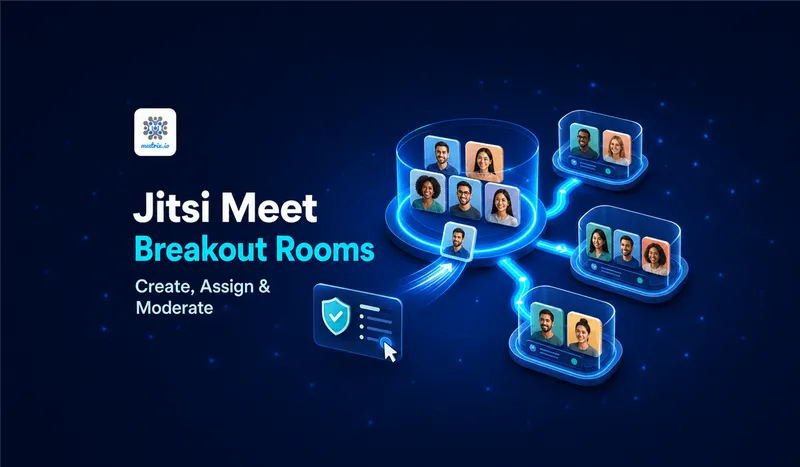
Short answer: yes, Jitsi Meet has breakout rooms, and unlike a couple of Jitsi's other collaboration features, you probably don't need to enable anything to get them. They've shipped by default since Jitsi Meet 2.0 back in 2021, and as of today, both docker-jitsi-meet and a standard apt install turn the feature on out of the box.
If you've landed here because the breakout rooms icon isn't showing up in your Participants panel, that's not the feature being off. It's almost always an old server config that predates the default flip. Here's how to check what you're actually running, fix it if needed, and then the part most guides skip: running breakout rooms as a moderator without losing track of who's where.
Checking Whether It's Already On
Start a call, open the Participants panel, and look for "Add breakout room" near the bottom. If it's there, you're done, skip straight to the moderation section below. If it isn't, one of two things is true: you're not the moderator (only the first person into the room gets this control), or your server's config was generated before the feature existed and never regenerated since.
Server details that matter here
Breakout rooms need Prosody 0.11.10 or newer and Jicofo 1.0-830 or later. Any Jitsi Meet install running current stable packages clears both by a wide margin, so version age is rarely the actual blocker. A stale, hand-edited Prosody config almost always is.
Fixing It on Docker
Current docker-jitsi-meet ships with breakout rooms controlled by one variable, defaulting to true:
ENABLE_BREAKOUT_ROOMS=trueIf your .env file has this set to false, or the variable is missing entirely from an older deployment that was templated before this default existed, add it and restart:
docker compose down
docker compose up -d
That's genuinely the whole fix for most Docker installs. No Prosody file to touch by hand. If you're setting up docker-jitsi-meet from a clean server rather than patching an existing one, our Jitsi Meet Docker Compose guide walks through the full stack.
Fixing It on a Manual Install
Straight apt installs need the breakout MUC component present in Prosody's config. If your server was set up a long time ago and the config file has never been regenerated since, add this to /etc/prosody/conf.avail/your-domain.cfg.lua:
sudo nano /etc/prosody/conf.avail/your-domain.cfg.luaInside your main VirtualHost's modules_enabled list, add the muc_breakout_rooms module, then the two domain mappings below the list:
modules_enabled = {
    "muc_breakout_rooms";
    -- your existing modules stay here
}

breakout_rooms_muc = "breakout.your-domain"
main_muc = "muc.your-domain"
Then add the breakout component itself, right alongside your existing conference component:
Component "breakout.your-domain" "muc"
    restrict_room_creation = true
    storage = "memory"
    modules_enabled = {
        "muc_meeting_id";
        "muc_domain_mapper";
        "muc_rate_limit";
    }
    admins = { "focus@auth.your-domain" }
    muc_room_locking = false
    muc_room_default_public_jids = true
sudo systemctl restart prosody jicofoReload the meeting afterward. No config.js change needed for the base feature to appear, it's purely a Prosody and Jicofo capability that the frontend detects automatically. If jicofo doesn't come back up cleanly after the restart, check our Jicofo configuration troubleshooting guide before assuming breakout rooms are the problem.
Creating and Assigning Rooms
Once the button's there, running a session is straightforward:
- Open the Participants panel and click Add breakout room. Repeat for as many rooms as you need, each one gets a default name like "Breakout Room 1" that you can rename by clicking it.
- Assign people either by dragging their name into a room, or by clicking the three dots next to a participant and picking Send to breakout room.
- Prefer not to assign manually for a large group. Click Auto assign and Jitsi splits everyone currently in the main room evenly across the breakout rooms you've created.
- As moderator, you can join any room yourself to check in, and jump back to the main room at any time.
- When time's up, click Close next to a specific room, or use the option in the more-actions menu to close every breakout room at once. Everyone lands back in the main room automatically.
One thing that trips people up on a first run: participants can leave whatever room they were assigned to and join a different one on their own, using the same list moderators use. There's no lock. If you're running something where that matters (an exam-style breakout, say), plan around it rather than expecting Jitsi to enforce it.
Locking Down Moderator Controls
Everything below goes in your server's config.js, and it only changes what non-moderators can see and do, moderators keep full access regardless of these settings.
breakoutRooms: {
    hideAddRoomButton: false,
    hideAutoAssignButton: false,
    hideJoinRoomButton: false,
    hideModeratorSettingsTab: false,
    hideMoreActionsButton: false,
    hideMuteAllButton: false,
}
The one worth flipping on most deployments is hideAddRoomButton. Leaving it false means any participant who happens to grab moderator status (say, the first one into a scheduled recurring meeting before the actual host arrives) can start creating rooms. On a classroom or client-facing account, I'd set this true and manage rooms from a single designated host account instead. For the rest of the moderator settings worth locking down beyond breakout rooms, see our Jitsi Meet security best practices guide.
Limits Worth Knowing Before You Rely on This
A few things aren't obvious until you hit them mid-session:
- No built-in timer or countdown. Announce the time limit yourself, in voice or the main chat, and close rooms manually.
- No hard cap in the software, but each breakout room is a full separate conference on your JVB. Past a few dozen rooms in one meeting, you're testing your server's capacity, not Jitsi's feature limits.
- Recording doesn't follow you into breakout rooms. Jibri records the main room; if you need a recording of what happened in a breakout, that room needs its own recording started separately, and most self-hosted setups don't bother. Our Jibri recording setup guide covers getting that running in the first place.
- Screen sharing works fine inside breakout rooms, same as the main call, so this isn't a downgrade for content-heavy sessions.
Frequently Asked Questions
Does Jitsi Meet have breakout rooms?
Yes. It's shipped since Jitsi Meet 2.0 in 2021, and on both Docker and manual installs it's enabled by default today. If the button is missing, the server is running an old config, not an old version necessarily, just one that predates the feature.
Who can create a breakout room in Jitsi Meet?
Only moderators, by default the first person to join the meeting. Participants can be given the ability to move themselves between rooms, but room creation itself stays moderator-only unless you're running a modified build.
Can participants move between breakout rooms on their own?
By default, yes, once rooms exist, anyone can hop between them freely from the breakout rooms list. There's no native setting to lock a participant to one room, that's the most common complaint about the feature.
How many breakout rooms can I create in Jitsi Meet?
There's no hard-coded limit in the software, but practically you'll hit trouble well before 75 rooms in one meeting, since each room is a separate conference your JVB has to host. Server capacity, not a config value, is the real ceiling.
Is there a timer for Jitsi Meet breakout rooms?
No built-in countdown. Moderators announce the time limit verbally or in the chat and close the rooms manually when it's up. If you need an actual timer, that's an external app or a browser extension, not a Jitsi setting.
How do I hide the add breakout room button from participants?
Set breakoutRooms.hideAddRoomButton to true in config.js. It only hides the button for non-moderators, moderators still see the full set of breakout controls regardless of this setting.
Related Articles

Run Breakout Rooms Without Managing the Server
Meetrix's pre-configured Jitsi Meet AMI (100 users, with recording) ships with a current, correctly generated Prosody config, so breakout rooms and the rest of Jitsi's newer features work without any of the manual setup above.
Launch Jitsi Meet 100-User AMI on AWS Marketplace