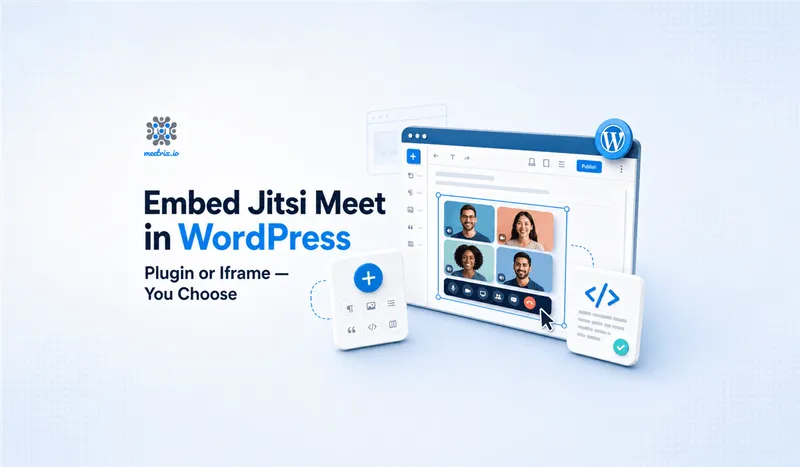
Short answer: there are two ways to do this, and picking the wrong one is why most "embed Jitsi in WordPress" attempts end up as a blank white box where the meeting should be. Install a plugin (FlexMeeting or MeetingHub) and you get a working room in about five minutes, no code touched. Paste in an iframe yourself and it takes a bit longer to set up, but you're not stuck on Jitsi's free hosted domain with its call-length cap and its branding sitting on top of your meeting.
Which one you actually want depends on one question: are you pointing at the free hosted Jitsi domain, or at a self-hosted instance running under your own domain? Get that answer first, everything below follows from it.
Which Domain Are You Embedding?
meet.jit.si (or another 8x8-hosted domain) is free, requires no account, and is the default most plugins point at out of the box. It's genuinely fine for the occasional call. It's also shared infrastructure, so quality dips during peak hours, and 8x8's own branding shows up in the room.
Self-hosted Jitsi is a server you run under your own domain. No cap on call length, no Jitsi branding, and you can lock the room down with JWT auth if you don't want it open to anyone with the link. It's also one more server you're responsible for patching.
If you're not sure which camp you're in: if you've never set up a server for this and just want a meeting room on your site today, you're in the free-domain camp. Use Method 1.
Method 1: A Plugin, No Code
Two plugins actively cover this as of today. FlexMeeting is Jitsi-only, has 1,000+ active installs and a 4.5-star rating, and its free tier already sidesteps the 2-hour cap the plugin's own listing attributes to 8x8-hosted domains, it defaults to a different hosted domain instead. MeetingHub is the broader pick if you also run Zoom or Google Meet links from the same site, it wraps all of them (plus Webex and Microsoft Teams) into one dashboard, with 400+ installs and a 4.8-star rating as of its last update in July.
For a Jitsi-only embed, FlexMeeting is the more direct tool. Here's the setup:
- In wp-admin, go to Plugins → Add New Plugin and search "FlexMeeting" (its full listing name is "Webinar & Meeting Plugin for Jitsi Meet"). Install and activate it.
- Open the page or post where the meeting should live, add a block, and search "Jitsi Meet" under the Embeds category, or use its Gutenberg block directly if it appears in the inserter.
- Set a room name and the block's width and height. A room name is all that's required, FlexMeeting generates the meeting itself.
- Publish, then open the page in a private/incognito window to confirm it loads and the camera prompt appears, logged-in admin sessions can hide permission issues other visitors will hit.
MeetingHub's setup is nearly identical, install, add its block or shortcode, pick Jitsi as the platform for that particular room. If you're only ever going to embed Jitsi, though, a single-purpose plugin means fewer settings screens to get lost in.
On WordPress.com
If your site is hosted on WordPress.com rather than self-hosted WordPress.org, plugin installs (FlexMeeting included) need the Business plan or above. Personal and Premium plans block third-party plugins entirely, and the iframe method below won't work there either, since those plans also block the Custom HTML block.
Method 2: A Plain Iframe, No Plugin
If you're self-hosting Jitsi already, this is less setup than a plugin's options page. Open the page in the block editor, add a Custom HTML block (not a Paragraph block, that distinction matters, more on why below), and drop this in:
<iframe
  src="https://meet.yourdomain.com/YourRoomName"
  allow="camera; microphone; fullscreen; display-capture"
  style="height: 600px; width: 100%; border: 0;"
></iframe>
Swap in your own domain and a room name. The allow attribute is the part people forget, without it the browser never even asks for camera and mic permission inside the frame, the call just sits there silent.
Why it has to be the Custom HTML block
WordPress runs saved post content through wp_kses for any account that lacks the unfiltered_html capability, which strips iframe and script tags. Administrators on a single-site install have that capability by default; on multisite, only Super Admins do. Paste this into a Paragraph block, or save it as an Editor-level account, and the tag quietly vanishes on save, no error, no warning, just gone.
A Dynamic Room With the JavaScript API
The plain iframe above is fine for one fixed room. If you want the room name generated per page, per user, or per booking, that needs Jitsi's JitsiMeetExternalAPI object instead of a static iframe, same Custom HTML block, more code. I've written up that setup in detail, including JWT authentication for locking rooms down, in the
What Actually Breaks
The failure modes I'd check first, in the order I'd check them:
- Blank box, nothing loads at all. Usually a caching or minification plugin (Autoptimize, WP Rocket's JS minify) mangling the script or iframe tag on output. Exclude the specific page from JS minification and reload.
- Box loads, camera/mic never prompts. Check your own WordPress site is served over HTTPS. Browsers require a secure context to grant camera and mic permissions, and if the parent page is plain HTTP, the permission request inside the iframe gets silently blocked, even though the Jitsi domain itself is HTTPS.
- Works for you, breaks for other admins or editors. The
unfiltered_htmlissue above, they saved the page and the tag got stripped without them noticing. - Missing entirely on the mobile app view or AMP version of the page. AMP strips custom iframes and scripts by design. If you're running an AMP plugin, this embed simply won't appear on the AMP-served version, only the standard page.
None of these are Jitsi problems, they're all WordPress or hosting configuration catching the embed before it renders. Worth ruling out in that order before assuming the Jitsi side is broken.
Outgrowing the Free Domain
The free hosted domain covers casual use fine. Where it stops working is anything client-facing or recurring at scale: the branding is 8x8's, not yours, the call-length cap shows up mid-meeting, and quality varies with how busy their shared infrastructure is that day. Moving to a self-hosted domain fixes all three, and once you're there, the iframe method above is the one to use, not a plugin's paid tier just to unlock a custom domain field.
If you want your own branding on the call itself, not just your own domain in the URL, that's a separate step covered in the
.
Frequently Asked Questions
Is there an official Jitsi Meet WordPress plugin?
No. Jitsi (owned by 8x8) doesn't maintain one itself. The two actively maintained third-party options are FlexMeeting and MeetingHub, both free on the WordPress.org plugin directory.
Can I embed Jitsi Meet in WordPress for free?
Yes, two ways: install FlexMeeting or MeetingHub's free tier, or skip plugins entirely and paste a plain iframe pointed at meet.jit.si into a Custom HTML block. Neither costs anything.
Does the free Jitsi WordPress plugin have a time limit?
FlexMeeting's own listing calls out a 2-hour cap on 8x8-hosted domains, and says its free tier defaults to a different hosted domain to avoid it. A self-hosted domain has no such cap either way.
Do I need to know how to code to add Jitsi Meet to WordPress?
Not for the plugin route, it's block-and-shortcode based. The iframe route needs zero coding too, just one line pasted into a Custom HTML block, but it does mean typing HTML instead of clicking settings.
Why did my Jitsi iframe disappear after I saved the page?
You're probably logged in as an Editor or Author, not an Administrator. WordPress strips iframe and script tags from saved content for any account missing the unfiltered_html capability, even inside a Custom HTML block.
Can I point a WordPress plugin at my own self-hosted Jitsi server?
With FlexMeeting, only on the Pro or Ultimate tier, custom domains are locked out of the free version. If you're already self-hosting, it's simpler to skip the plugin and use the iframe method, which works with any domain for free.
Does embedding Jitsi Meet work on WordPress.com?
Only on the Business plan or above. Personal and Premium WordPress.com plans block both third-party plugin installs and the Custom HTML block, so neither method here will work until you upgrade.
Related Articles
Get a Self-Hosted Domain Without Running the Server
Meetrix's pre-configured Jitsi Meet AMI runs under your own domain from the moment it launches, no plugin's Pro tier needed to get there. Point the iframe method above at it and the branding, the call-length cap, and the shared-infrastructure slowdowns are gone.
Launch Jitsi Meet 50-User AMI (with Recording) on AWS Marketplace