Welcome to our comprehensive developer guide for deploying Jitsi Meet on Google Cloud Platform! Jitsi Meet is a powerful, open-source video conferencing solution, and with our pre-configured GCP image, you can get it running in your own GCP environment in minutes.
This guide will walk you through every step, from launching the product to configuring your domain and securing your instance. Let's get started!
Video Guide
Prerequisites
Before you begin, make sure you have the following:
- Basic GCP Knowledge.
- An active Google account with appropriate permissions.
Launch the Product
Step 1: Find the Product
- Log in to your Google account.
- Follow the provided link to access Marketplace: https://console.cloud.google.com/marketplace?hl=en
- Find the Jitsi Meet solution according to your need.
- You may also find the solution by visiting the Meetrix Solutions Page.
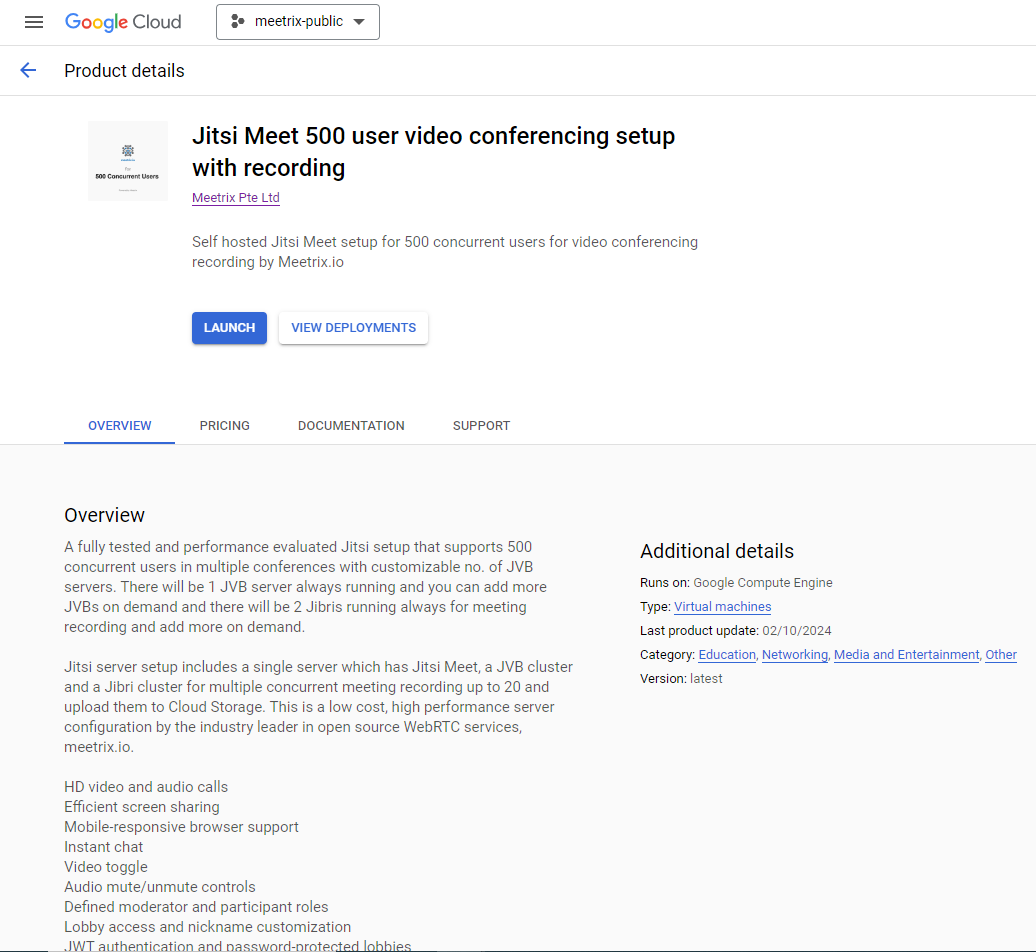
- You will see the following screen. (For this guide, we will take the 500 concurrent setup as the example.)
Step 2: Launch the Product
- Select the Project.
- Read all the description and pricing.
- After that click on GET STARTED button.
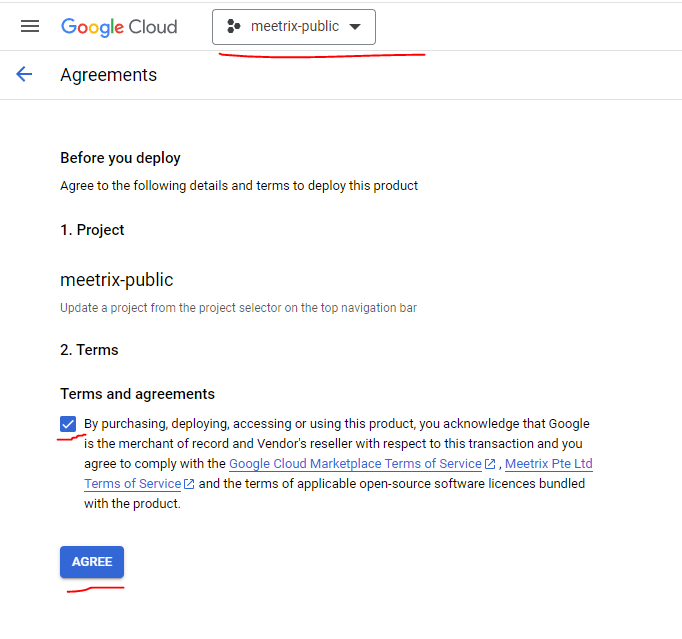
- Select the project, accept the terms and click on AGREE.
- You will see a screen like below. Fill the metadata.
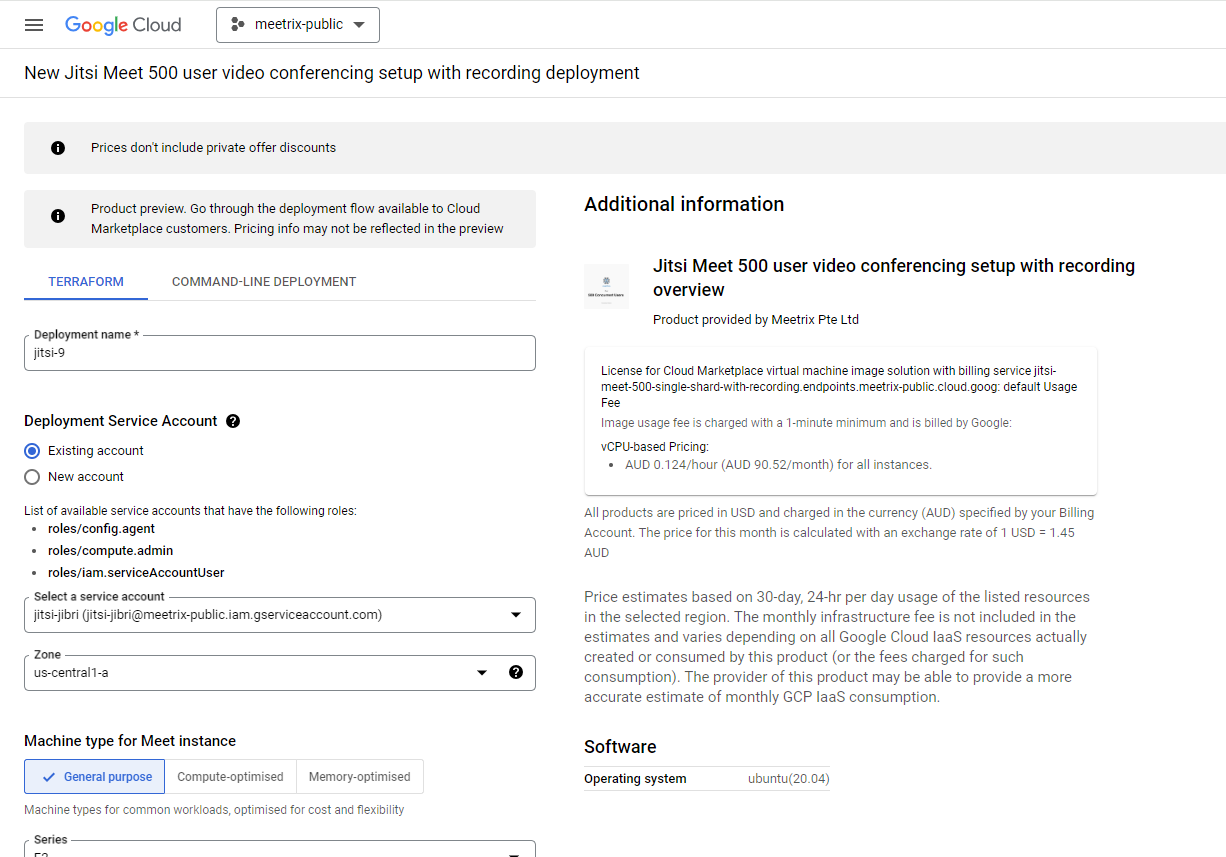
- Add Deployment name.
- You can choose an existing service account or create a new account.
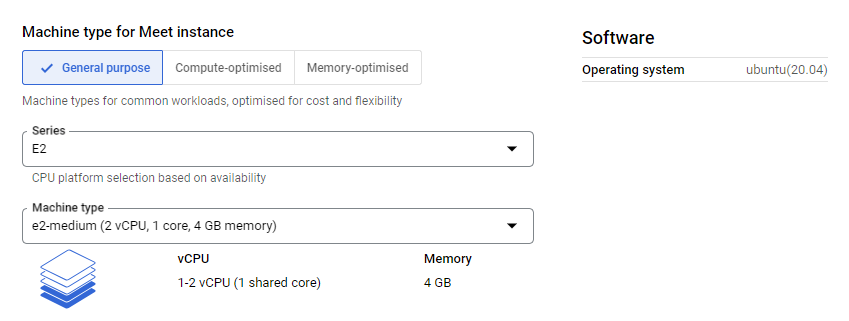
- Choose an instance type for Jitsi Meet.
- If your setup is 50 users or 100 users, Jitsi Meet and JVB both will be available in a single server. Thus please choose a high performance server.
- If your setup is 250 users or 500 users, you can select general purpose server.
- If your setup is 250 users or 500 users: JVB will be available as separate servers. Please choose an instance type for JVBs.
- If your setup is 500 user setup: You can customize the JVB server count.
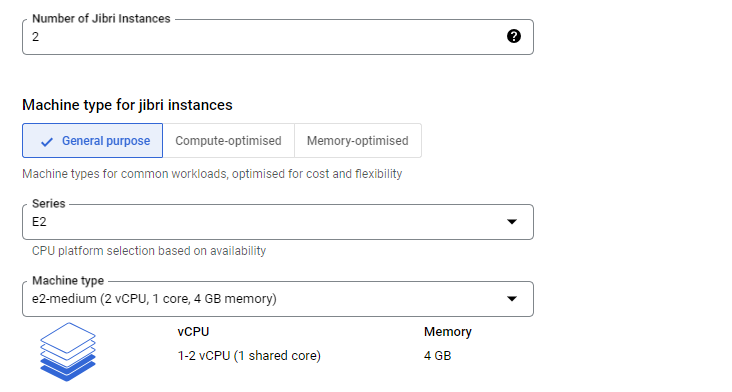
- If your setup has Jibri:
- Select the preferred instance type for Jibri.
- According to your product, there might be an option available to customize the number of Jibris. Please add your preferred Jibri instance count (this option is available for 500 user product).
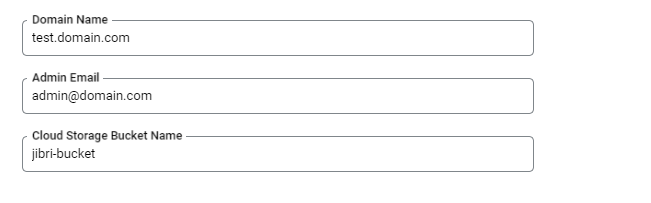
- Choose Domain according to your preference.
- Enter Admin email to install the SSL Certificate.
- Please create a cloud storage bucket separately to store Jibri recordings. Add the Bucket name here. (This option is relevant only to Jibri Setups.)
- You can customize the Boot Disk size.
- If you want to restrict SSH access, add the IP or IP range under the Firewall settings.
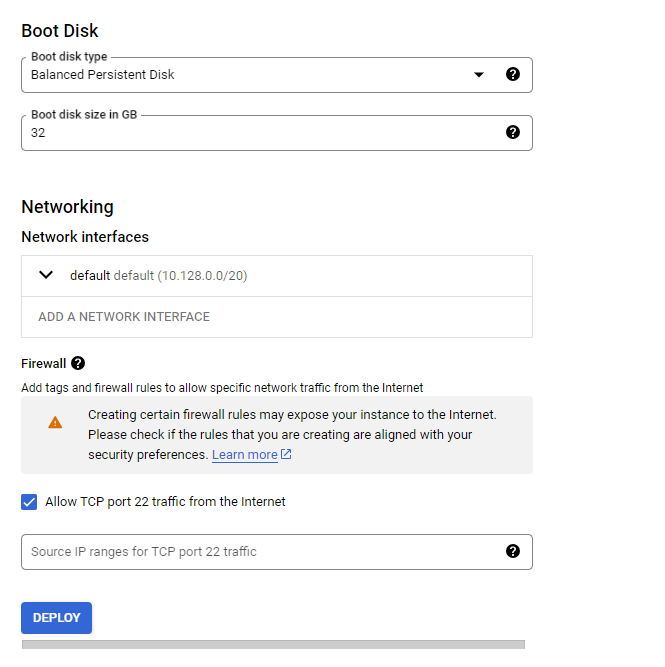
Click on DEPLOY. You have to wait several minutes until the deployment is finished.
Install SSL
Step 1: Point DNS
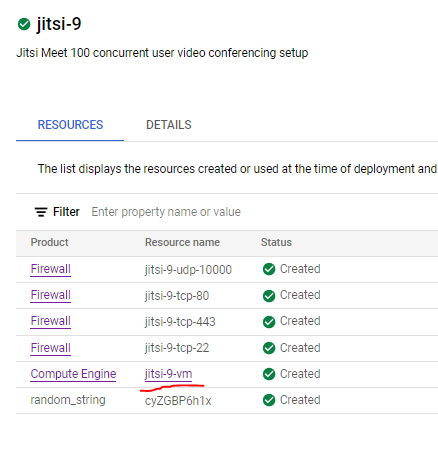
- After the deployment is ready, click on the compute engine resource name.
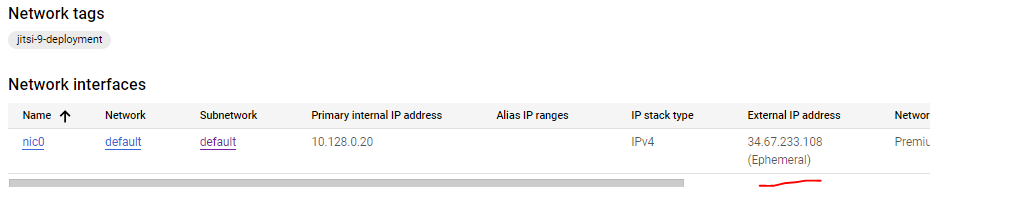
- Copy the External IP under the Network interfaces section.
- Go to your DNS provider and add a simple A Record for the Jitsi domain and the copied IP.
Step 2: Access the Server
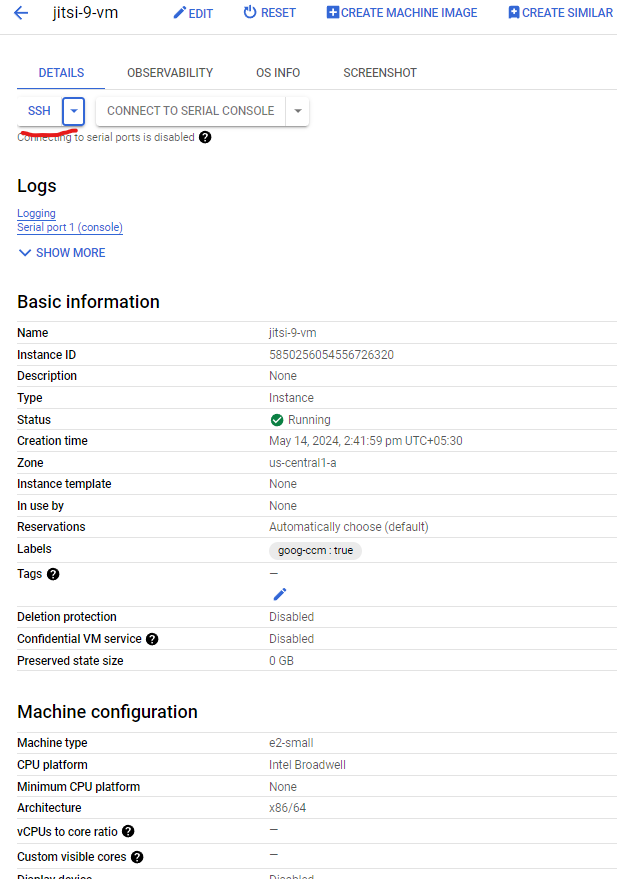
- In the VM instance page, click on SSH.
- Authorize and continue to log into the server.
Step 3: Run Certbot
- Type the following command and continue:
sudo certbot --nginx
Follow the instructions accordingly:
- Add email.
- Agree to the Terms and Conditions.
- Agree/Disagree to share email with foundation.
- Select the domain name.
SSL Installed Successfully
Step 4: Start a Meeting
Open a new browser tab using the domain and enjoy Jitsi Meet.
Troubleshoot
Check the Server Logs
To check logs, log into the server and use the following commands:
sudo tail -f /var/log/jitsi/jicofo.log
sudo tail -f /var/log/prosody/prosody.log
sudo tail -f /var/log/prosody/prosody.err
sudo tail -f /var/log/nginx/access.log
sudo tail -f /var/log/nginx/error.log
sudo tail -f /var/log/syslog
sudo tail -f /var/log/jitsi/jvb.log
Check Console Logs
You can open the browser console in the meeting page and check for any visible errors.
Technical Support
If you run into any issues, our support team is here to help. Reach out to us at aws@meetrix.io.
Frequently Asked Questions
Can I use my own domain name?
Yes. This guide walks you through configuring your own domain name and setting up SSL certificates for it.
What are the minimum instance requirements for Jitsi Meet?
For a small to medium setup (up to 100 users), we recommend a high-performance server. For larger setups (250-500 users), you can use general-purpose servers with separate JVB instances.
How do I handle SSL certificate renewal?
SSL certificates generated with Let's Encrypt need to be renewed every 90 days. You can set up automatic renewal or manually renew using the certbot command.
What should I do if deployment takes too long?
Deployment typically takes 5-10 minutes. If it takes longer, check the deployment logs in the GCP console for any errors or issues.
Ready to Launch Your Own Video Conferencing Platform?
Get started in minutes with our pre-configured GCP image and take control of your video conferencing.
Deploy Jitsi Meet from GCP Marketplace