Welcome to our comprehensive developer guide for deploying Listmonk on AWS! Listmonk is a powerful, open-source email marketing platform, and with our pre-configured AMI, you can get it running in your own AWS environment in minutes.
This guide will walk you through every step, from launching the AMI to configuring your domain and securing your instance. Let's get started!
Video Guide
Prerequisites
Before you begin, make sure you have the following:
- Basic knowledge of AWS services, including EC2 and CloudFormation.
- An active AWS account with the necessary permissions.
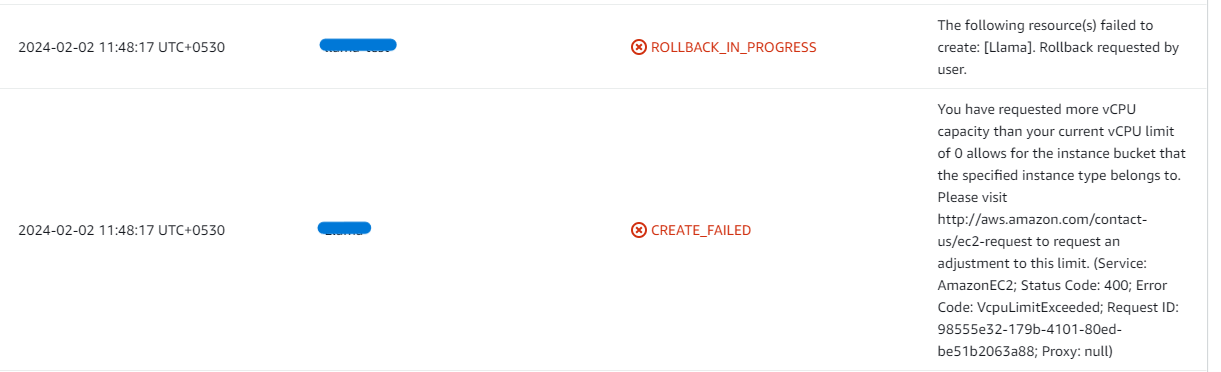
- Sufficient vCPU quota to launch new instances. If you need to increase it, follow this guide.
Launching the Listmonk AMI from AWS Marketplace
Step 1: Subscribe to the AMI
- Navigate to the Listmonk listing in the AWS Marketplace.
- Click the Continue to Subscribe button.
- Accept the terms and conditions by clicking Accept Terms.
- After a brief processing period, click Continue to Configuration.
Step 2: Configure and Launch
- On the "Configure this software" page, select your desired AWS region.
- Click Continue to Launch.
- From the "Choose Action" dropdown, select Launch CloudFormation.
- Click Launch. This will redirect you to the CloudFormation console to create a new stack.
Deploying with CloudFormation
Step 1: Create Stack
- You'll be taken to the "Create stack" page. Ensure the "Template is ready" option is selected.
- Click Next.
Step 2: Specify Stack Details
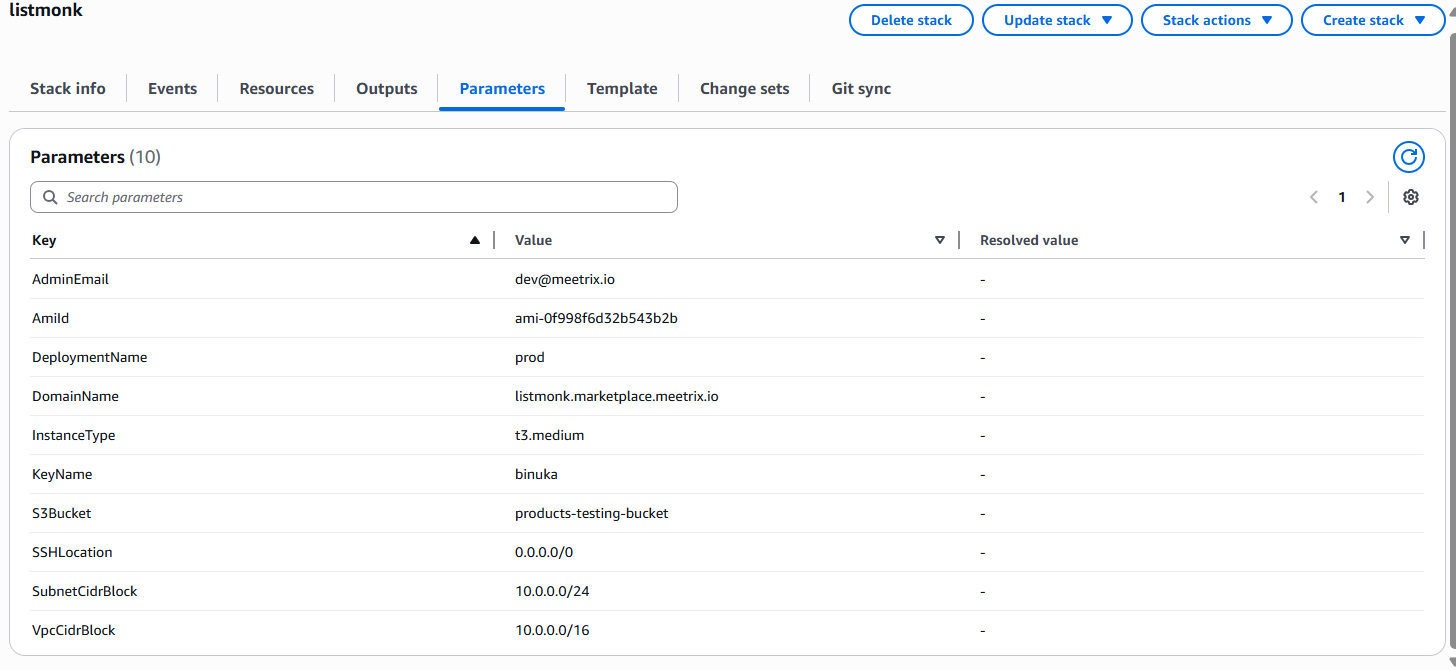
Provide the necessary parameters for your Listmonk deployment. These settings define how your instance will be configured.
| Parameter | Description |
|---|---|
| Stack name | A unique name for your CloudFormation stack (e.g., my-listmonk-deployment). |
| Admin Email | The email address for generating SSL certificates with Let's Encrypt. |
| DeploymentName | A name for your deployment (e.g., listmonk). |
| DomainName | Your public domain name (e.g., listmonk.yourdomain.com). SSL will be set up automatically if the domain is hosted on Route 53. Please make sure your domain name is hosted on Route 53. If it's unsuccessful, you have to set up SSL manually. |
| EmailFrom | The "From" email address for outgoing emails (e.g., noreply@yourdomain.com). |
| InstanceType | The EC2 instance type. We recommend t3.medium or larger for optimal performance. |
| KeyName | The name of your EC2 key pair for SSH access. |
| S3Bucket | An S3 bucket name for storing PostgreSQL database backups. |
| SMTPHost, SMTPPassword, SMTPPort, SMTPUser | Your SMTP server details for sending emails. |
| SSHLocation | The IP address range for SSH access. Defaults to 0.0.0.0/0 (open to all). For better security, restrict this to your IP. |
| SubnetCidrBlock | The CIDR block for the subnet. Defaults to 10.0.0.0/24. |
| VpcCidrBlock | The CIDR block for the VPC. Defaults to 10.0.0.0/16. |
After filling in the details, click Next.
Step 3: Configure Stack Options
- Under "Stack failure options," choose Roll back all stack resources. This ensures that failed deployments are automatically cleaned up.
- Click Next.
Step 4: Review and Submit
- Review all the details you've entered.
- Acknowledge that CloudFormation might create IAM resources by ticking the checkbox.
- Click Submit to start the deployment.

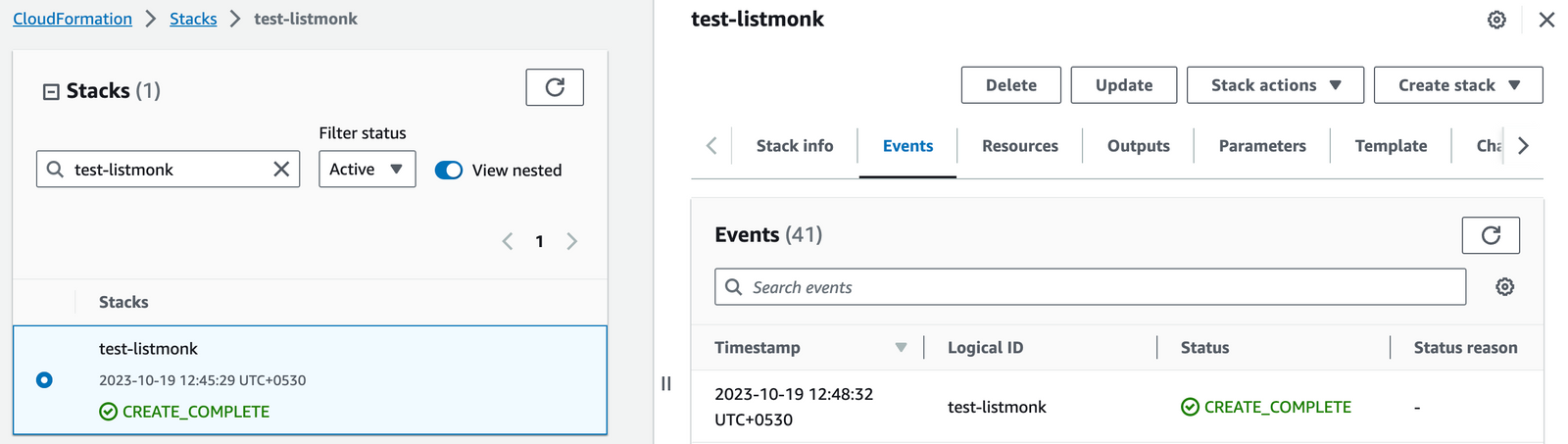
You will be redirected to the CloudFormation stacks page, where you can monitor the deployment progress.
The stack creation process typically takes 5-10 minutes. Wait for the status to change to CREATE_COMPLETE.
Configuring Your DNS
Step 1: Get the Public IP Address
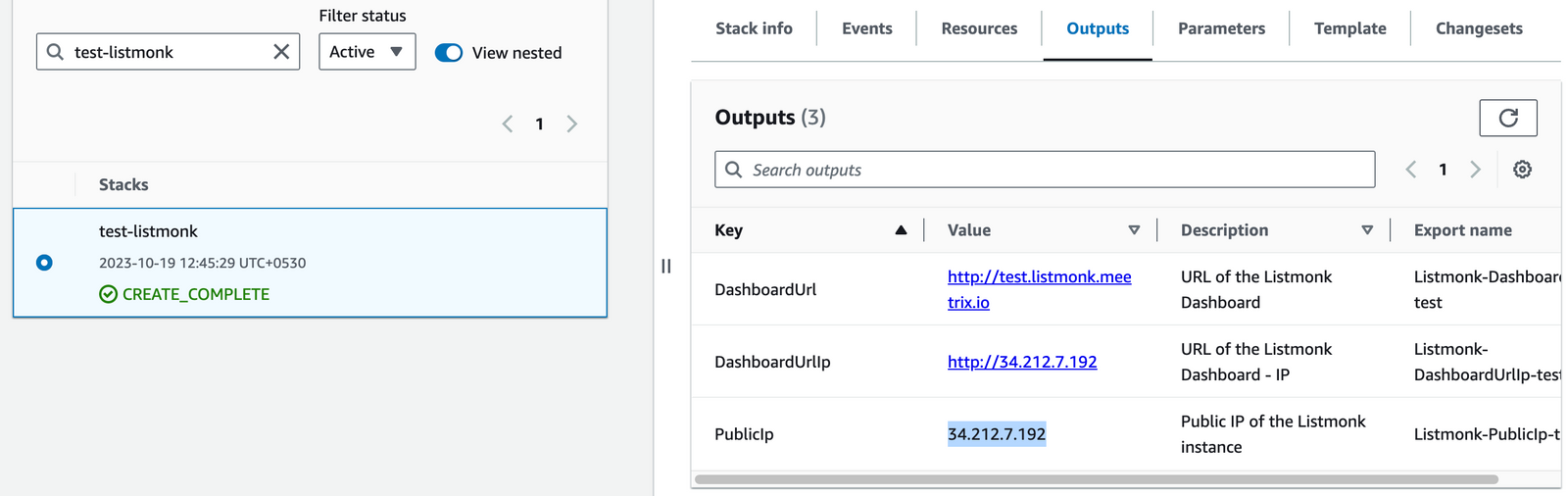
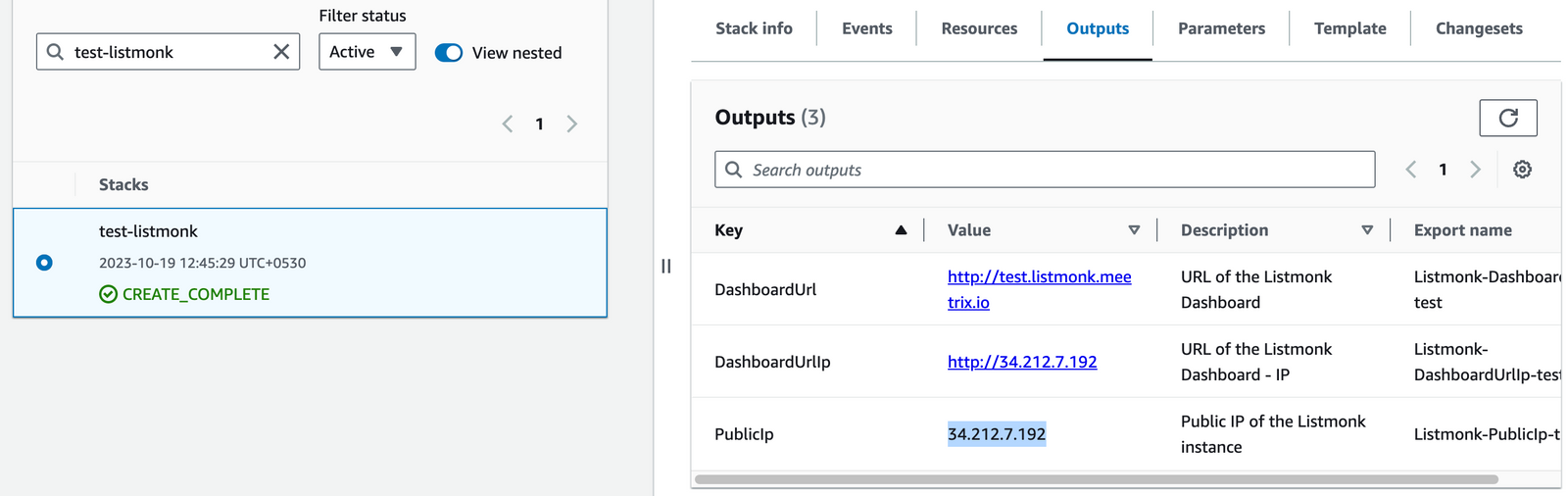
Once the stack is created, go to the Outputs tab and copy the value of PublicIp.
Step 2: Create a DNS Record
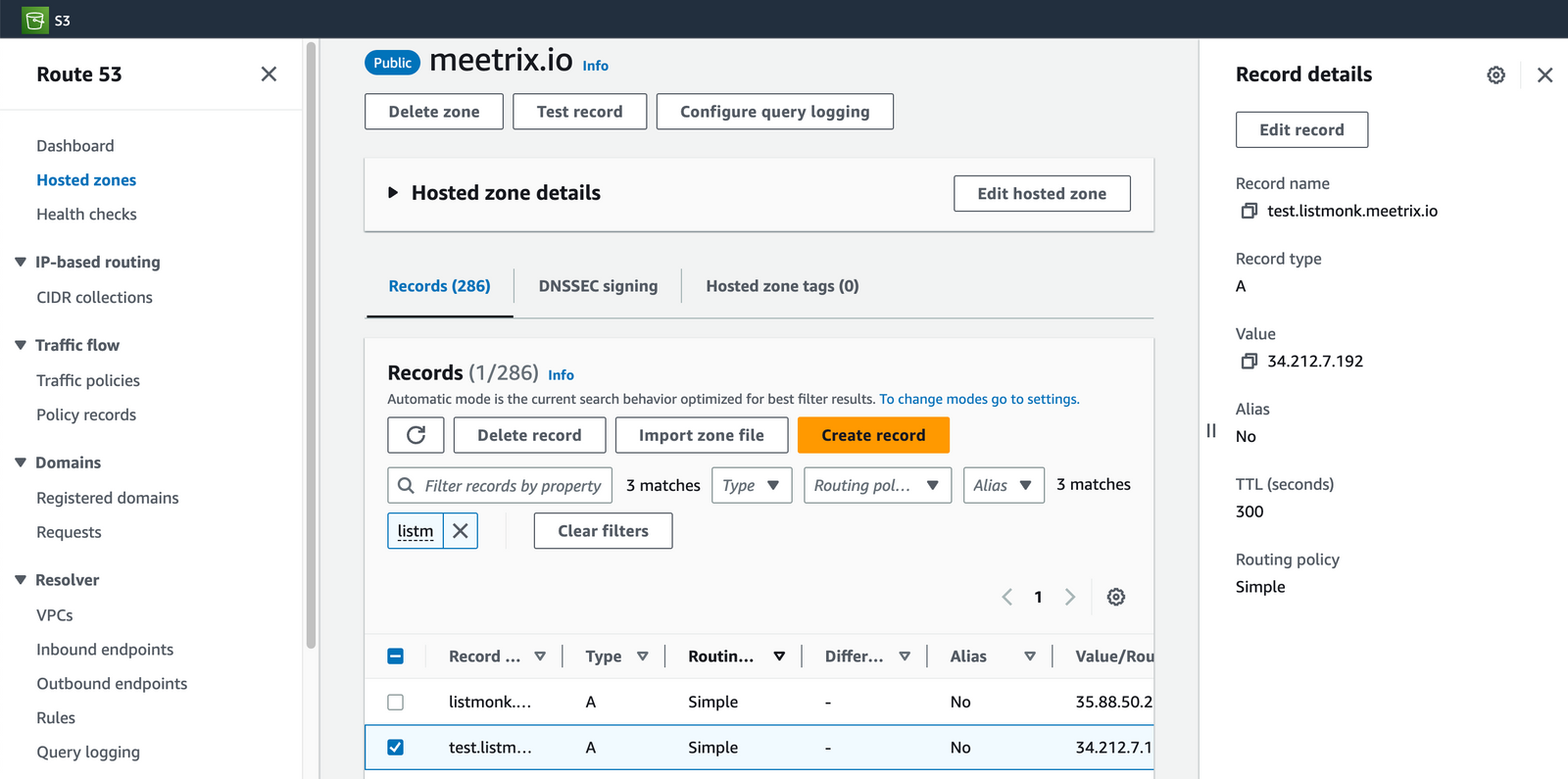
- Go to your DNS provider (e.g., AWS Route 53, GoDaddy, Cloudflare).
- Create an A record for your domain (e.g.,
listmonk.yourdomain.com). - Point the record to the PublicIp you copied in the previous step.
- Save the record.
Accessing Your Listmonk Instance
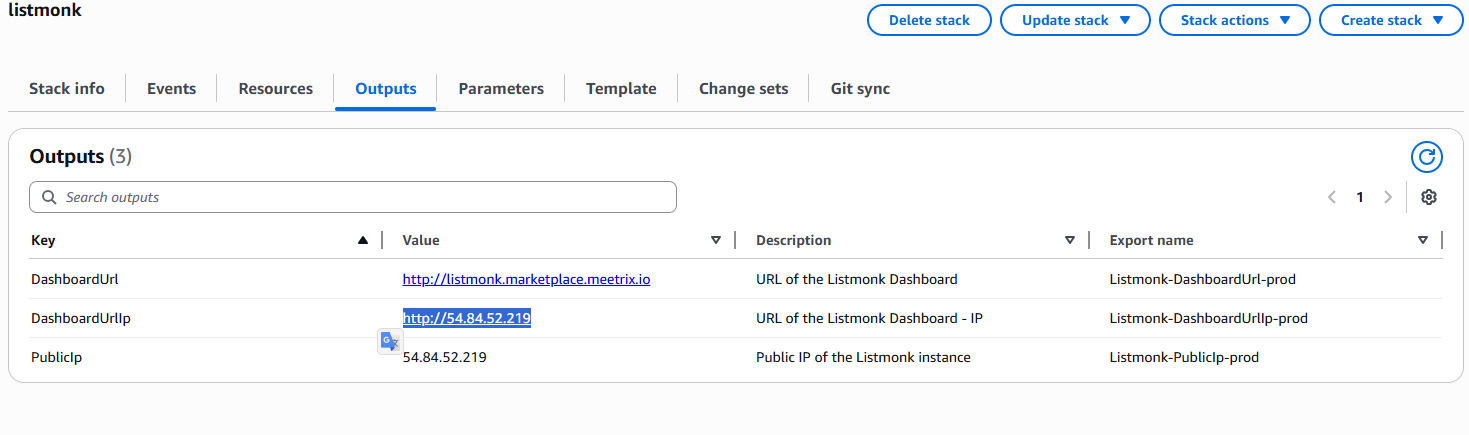
You can now access your Listmonk application using the DashboardUrlIp from the CloudFormation "Outputs" tab.
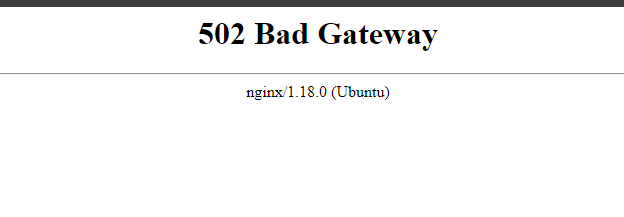
502 Bad Gateway Error?
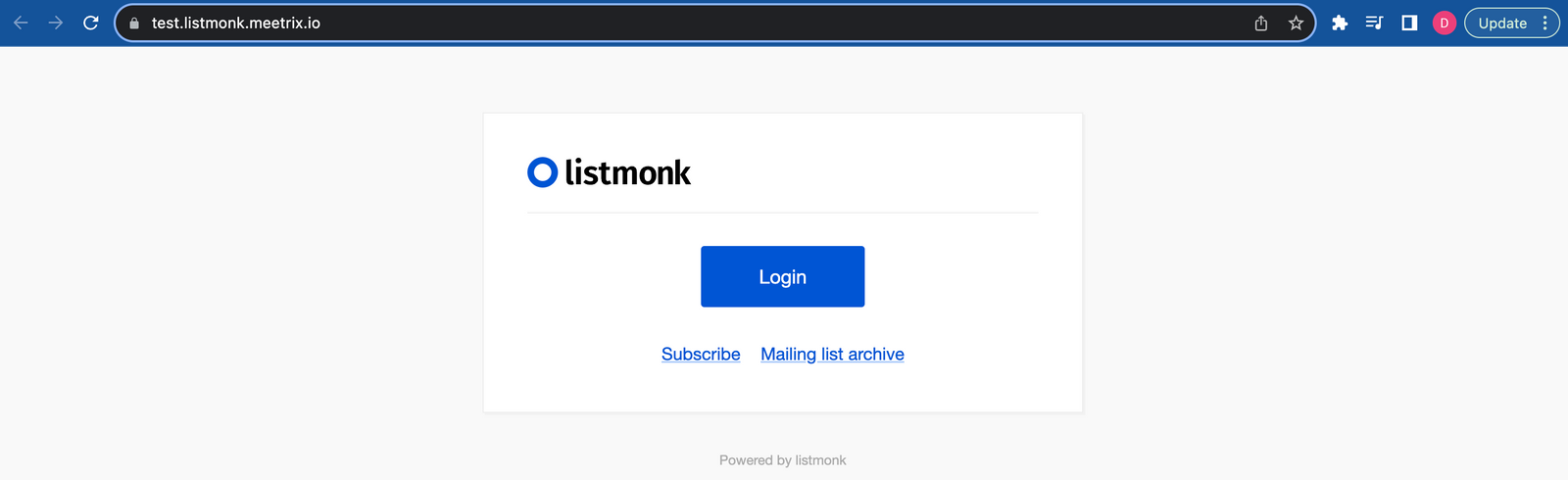
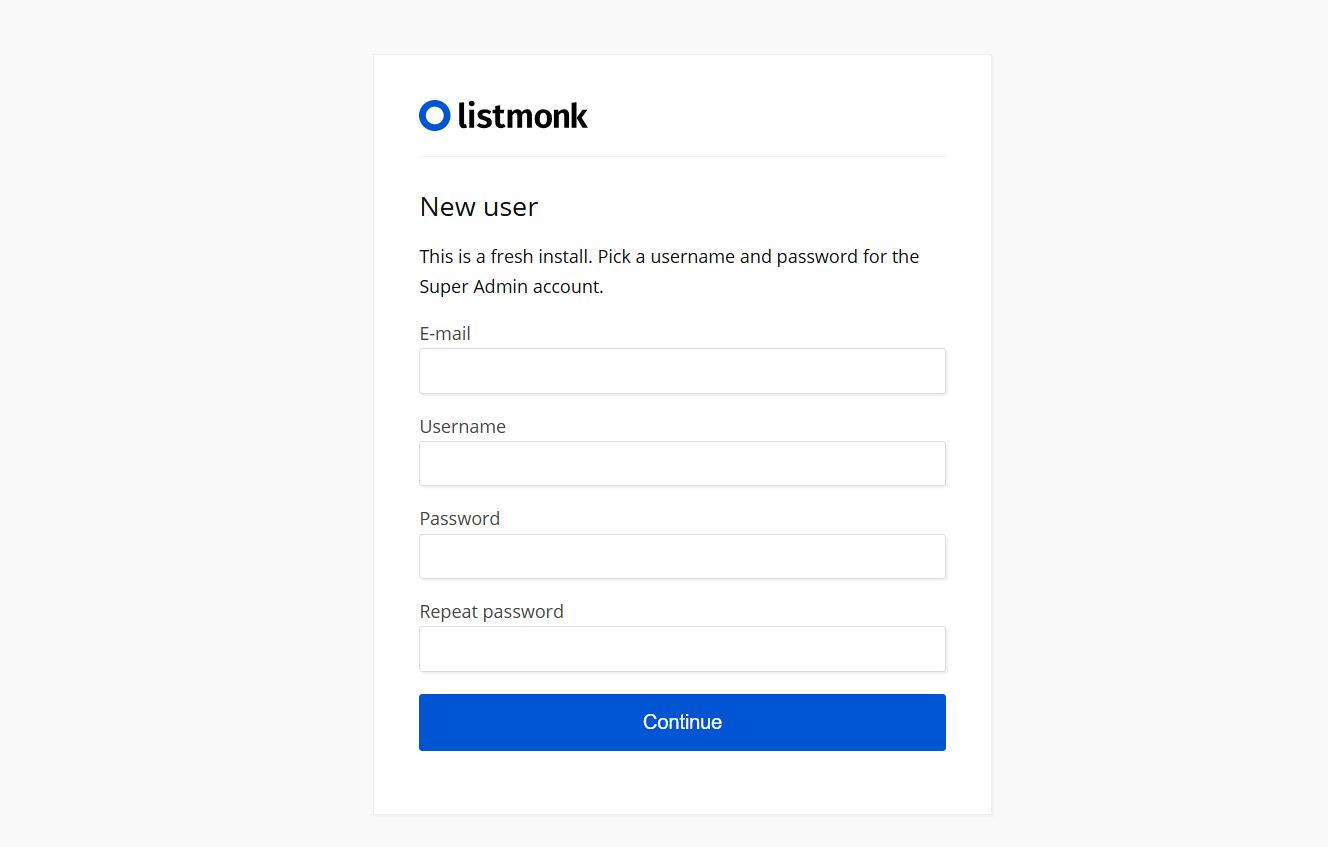
- Click "Login" button and enter details.
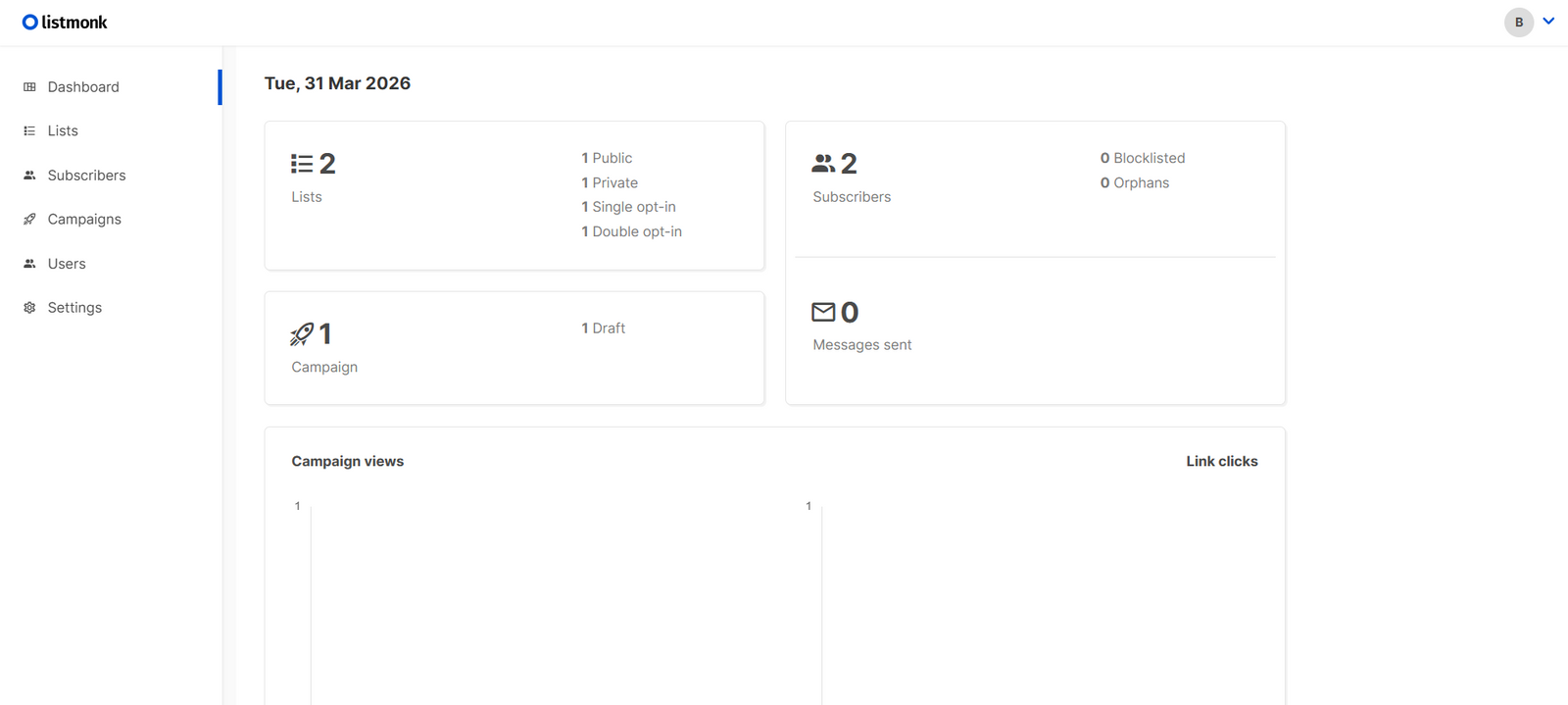
- Then click continue button. You will navigate to the Listmonk dashboard.
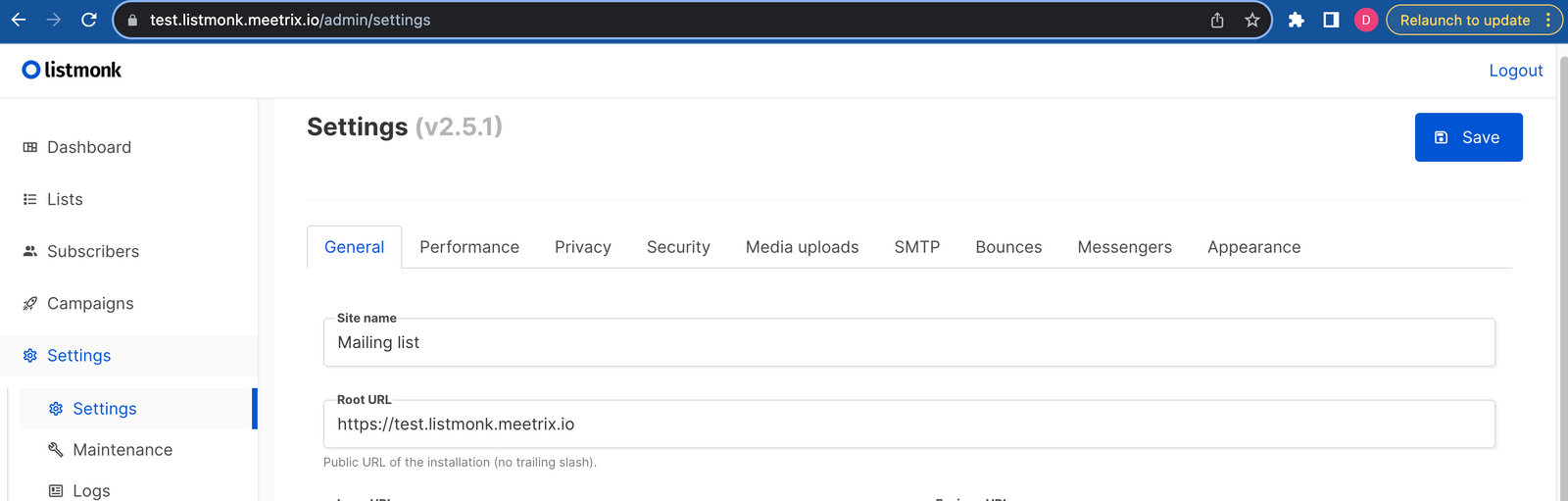
- Before you start, please go to the "General" tab in the settings and modify the "Root URL" to correspond with your domain. Additionally, adjust the "Default `from` email" according to your preference, then click on "Save".
Setup Gmail SMTP server
Step 1: Obtain password
- Navigate to your google account https://myaccount.google.com/.
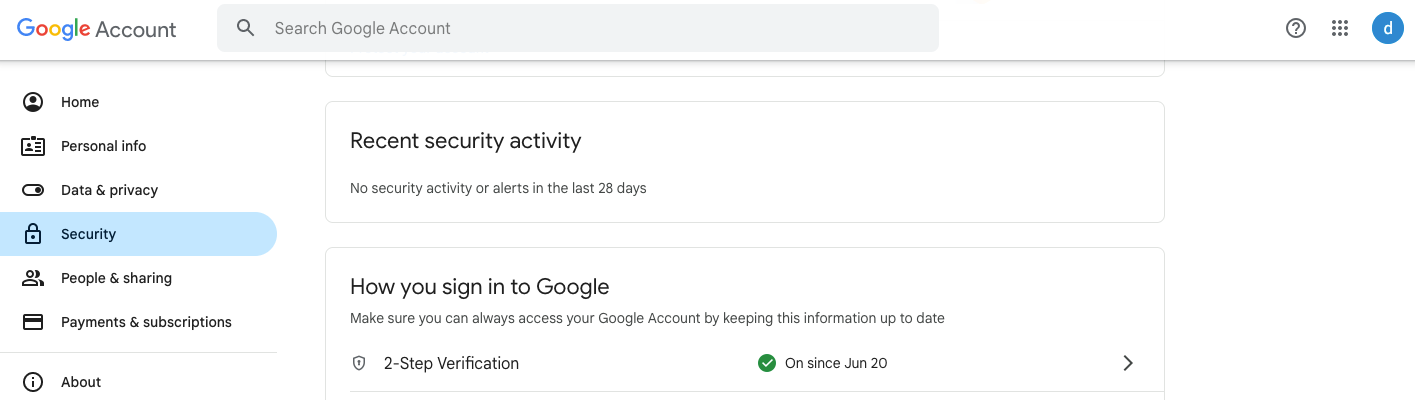
- In the Security section, enable 2-step verification.
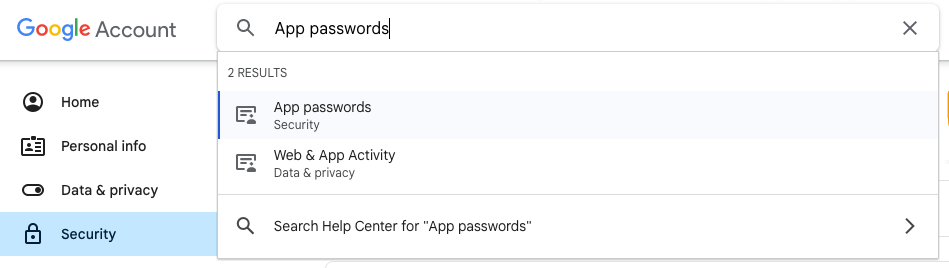
- Use the search bar to find the "App passwords" option and navigate to the "App passwords" section.
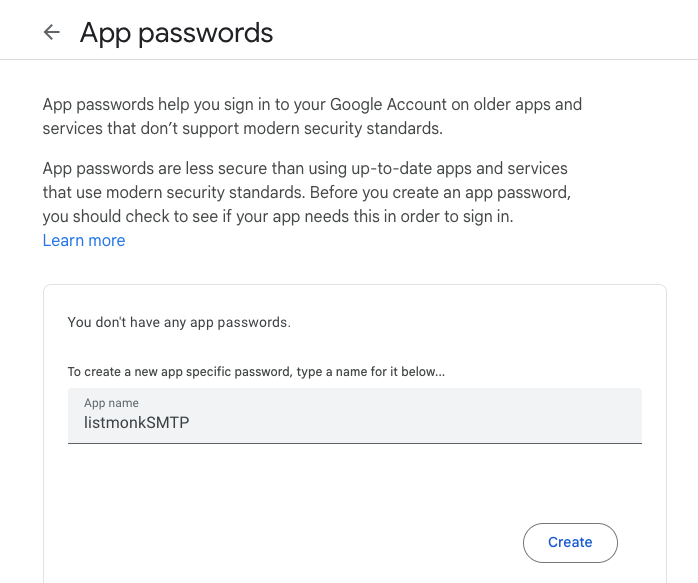
- Provide an app name and click on "create" to generate.
- Once generated, copy the password and ensure to keep it safe as it will not be visible again.
Step 2: Test SMTP
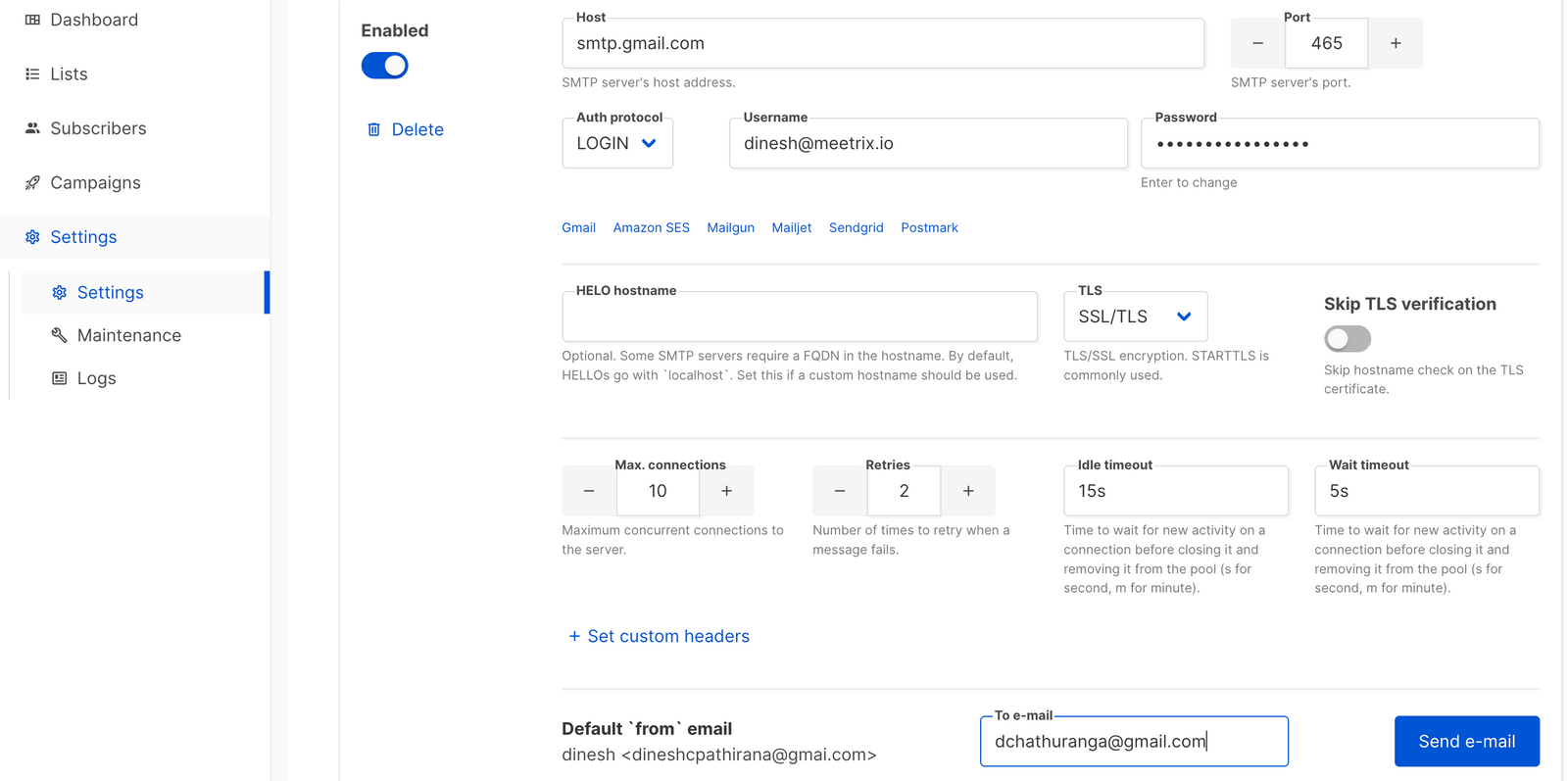
- Navigate to the SMTP tab in the Listmonk "Settings".
- Provide the following details:
- Host:
smtp.gmail.com - Port:
465 - Auth protocol:
LOGIN - Username: Your Gmail address
- Password: Previously generated password
- To e-mail: An email address to which you want to send the test email
- Host:
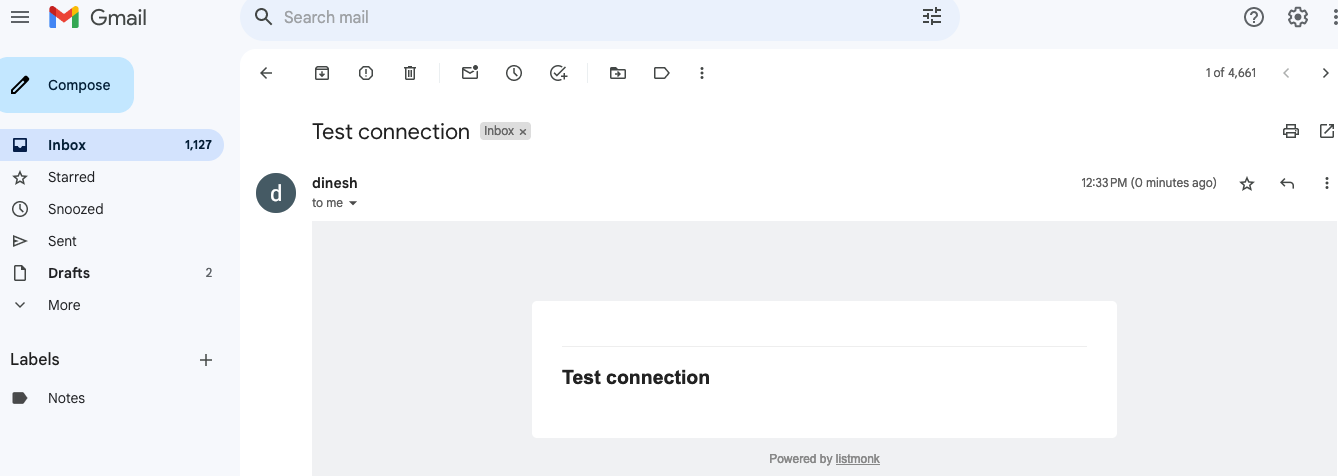
- Click on "Send Email". If everything is in order, you will receive a test email.
- Save the settings, and you're all set to proceed.
Manual SSL Certificate Generation
If your domain is not hosted on Route 53, the automatic SSL setup might fail. In that case, you'll need to generate the certificate manually.
Step 1: SSH into the Server
- From the CloudFormation "Outputs" tab, copy the PublicIp.
- Open your terminal and use the following command to connect to the server. Replace
your-key.pemwith your key pair file.
ssh -i "your-key.pem" ubuntu@<Public IP address>
Step 2: Run the Certificate Script
Once logged in, run the following script. It will prompt you to enter your domain name and email address.
sudo /root/certificate_generate_standalone.shManaging Your Listmonk Instance
Shutting Down and Restarting
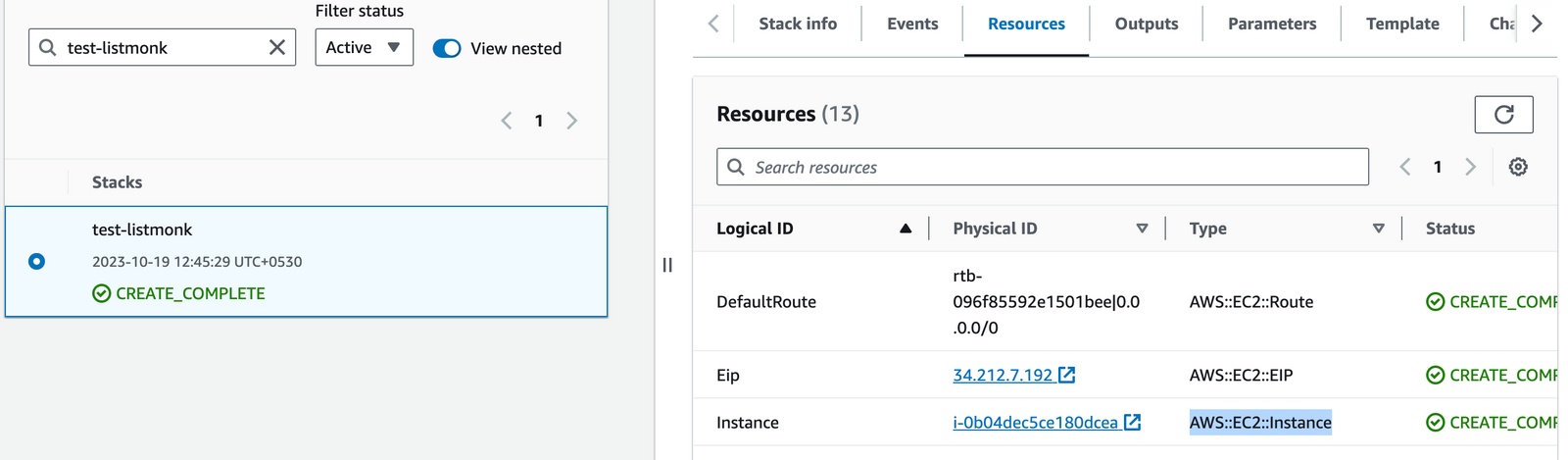
- In the CloudFormation stack's Resources tab, click the link for the Instance to go to the EC2 console.
- Select the instance and use the Instance state dropdown to Stop instance or Start instance.

Removing the Deployment
To completely remove the Listmonk application and all associated resources, simply delete the CloudFormation stack from the AWS console.
API Documentation
Listmonk provides a powerful REST API that allows you to control the entire platform programmatically. You can find the complete documentation here:
Official Listmonk API Documentation
Upgrading Your Instance
We regularly update our AMI with the latest version of Listmonk. To upgrade, you can launch a new instance with the newer version and migrate your data. Remember to back up your server data before removing the old instance.
Troubleshooting Common Issues
- vCPU Quota Error: If you see an error about vCPU limits, please follow this guide to request an increase.
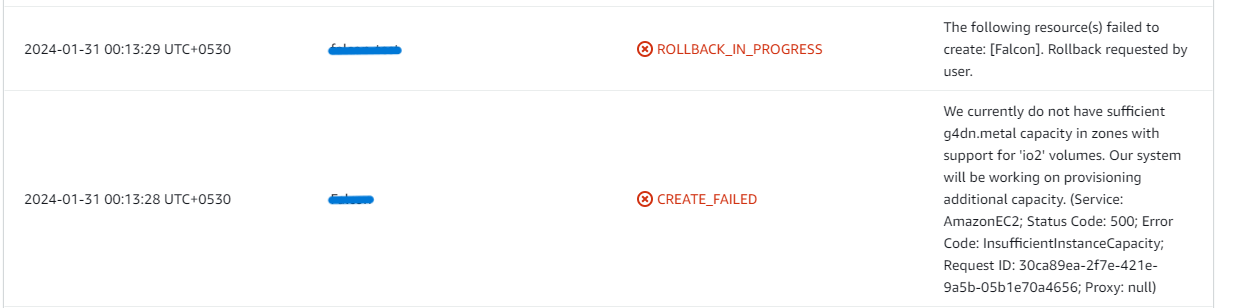
- Insufficient Capacity: If you get an "insufficient instance capacity" error, try launching the stack in a different AWS region or at a later time.
- Dashboard Error on First Load: If the dashboard doesn't load immediately, wait 5-10 minutes for the services to initialize and then try again.
Conclusion
To sum up, Listmonk proves to be a versatile solution for managing mailing lists and newsletters, featuring a self-hosted model with minimal dependencies - it operates as a standalone binary with only a Postgres database required. This setup ensures users have full control over their email marketing processes, enabling seamless integration and scalability without reliance on external services. Whether for small businesses or large enterprises, Listmonk offers robust features and straightforward deployment, making it an excellent choice for enhancing and managing email campaigns effectively. Opt for Listmonk to streamline your email marketing efforts with ease and control.
Technical Support
If you run into any issues, our support team is here to help. Reach out to us at aws@meetrix.io.
Frequently Asked Questions
What is Listmonk?
Listmonk is an open-source, self-hosted email marketing platform that allows you to manage mailing lists, send campaigns, and track results with full control over your data.
What are the prerequisites for installing Listmonk on AWS with this guide?
You need basic knowledge of AWS services (EC2, CloudFormation), an active AWS account with appropriate permissions, and a sufficient vCPU limit.
How do I get technical support?
You can reach out to Meetrix Support at support@meetrix.io for assistance with Listmonk issues.
How do I handle upgrades?
When a new version is available in the AWS Marketplace, you can remove the previous version and launch the product again using the newer version. Remember to backup the necessary server data before removing.
Ready to Launch Your Own Email Marketing Platform?
Get started in minutes with our pre-configured AMI and take control of your email campaigns.
Deploy Listmonk from AWS Marketplace