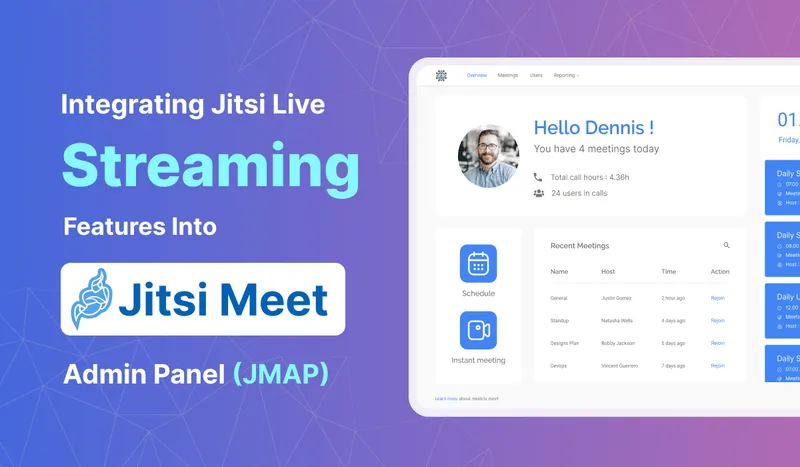
As online meetings and events continue to grow, platforms like Jitsi Meet have become go-to solutions for connecting people virtually. But like most video conferencing tools, Jitsi Meet faces challenges when handling large sessions. Things start to get tricky when more than 500 participants are in a meeting. That's where Jitsi Meet Admin Panel (JMAP) Version 2 comes in.
With JMAP Version 2, we've added a live-streaming feature that lets you broadcast meetings to platforms like YouTube. This means you can still host huge events withoutworrying about system overloads or performance issues. Instead of being limited by the number of participants in the meeting, you can now stream to thousands of viewers smoothly.
Key Takeaways
- Jitsi Meet struggles with performance in sessions with over 500 participants.
- JMAP Version 2 introduces live streaming to YouTube to overcome these limitations.
- Admins can schedule, manage, and moderate live streams directly from the JMAP dashboard.
- Participants join the meeting via JMAP, while viewers watch on YouTube, ensuring a smooth experience for large audiences.
The Challenge: Scaling Jitsi Meet for Large Audiences
Jitsi Meet is a fantastic tool for hosting virtual meetings, but its performance can degrade when too many people join a single session. When you have over 500 participants, you might encounter issues like:
- Slower performance leading to lags and delays.
- Camera and audio problems where users cannot enable their devices.
- Overall disruption that can derail important events like webinars or town halls.
The Solution: JMAP Version 2 with Live Streaming
To solve these scaling issues, we developed JMAP Version 2. The most significant upgrade is the Live Streaming feature. Instead of having everyone join a single, crowded meeting, you can now broadcast it live to platforms like YouTube. This allows you to reach an unlimited audience without overloading the system, resulting in smooth, uninterrupted events for everyone.
Getting Started: How to Set Up Live Streaming in JMAP
Setting up a live stream is a straightforward process. Follow these steps to get started:
- Sign in as Admin: Log in to JMAP with your administrator credentials.
- Open the Live Streaming Tab: Navigate to the "Live Streaming" tab from the main dashboard. This is your control center for creating and managing streams.
- Enable YouTube Connectivity: Click the "YouTube Connectivity" button and follow the prompts to authorize JMAP to stream to your YouTube account.
- Create a New Stream: Click the "New" button to open the streaming setup window.
- Add Stream Details: Enter a title for your stream and schedule the start time.
- Add Participants: Select the users or groups who will actively participate in the meeting with camera and microphone access.
- Add Viewers: Choose the groups of people who will watch the stream on YouTube. They will not join the Jitsi meeting directly.
- Schedule the Stream: Once all details are filled in, click "Create".
- Launch the Meeting: When it's time to start, click the "Launch" button to begin the live meeting for participants.
- Start the Live Broadcast: As the admin in the meeting, click the streaming icon in the toolbar to begin the public broadcast to YouTube.
Managing Your Live Streams
JMAP provides a simple interface to manage all your live streams - upcoming, ongoing, and past.
Viewing and Searching Streams
- Upcoming Streams: See all your scheduled streams and make edits if needed.
- Ongoing Streams: Quickly join a stream that is currently active.
- Recent Streams: Review streams that have already ended.
- Search: Use the search bar to find a specific stream by its title or time.
Updating a Scheduled Stream
Need to make a change? It's easy:
- Go to the "Upcoming Streaming" tab.
- Click on the stream you wish to edit.
- In the pop-up window, modify the title, participants, or viewers.
- Click "Save" to apply the changes.
Deleting a Stream
To cancel a stream:
- Navigate to the "Upcoming Streaming" tab.
- Find the stream you want to remove.
- Click the delete icon on the stream's card and confirm your choice.
Connecting to YouTube
You can enable or disable YouTube connectivity at any time:
- To Enable: Toggle the "YouTube Connectivity" button on, sign in with your Google account, and grant the necessary permissions.
- To Disable: Simply toggle the button off and confirm the disconnection.
Moderating Your Live Stream
If you are the moderator, you have full control over the broadcast:
- Join the stream as a moderator.
- To end the broadcast, click the "Stop Streaming" icon in the meeting toolbar. This will stop the live feed to YouTube but the internal meeting can continue.
Conclusion
With JMAP Version 2 and its live streaming feature, you can take your Jitsi Meet sessions to the next level by broadcasting them to a much larger audience without worrying about participant limits or system performance issues. Whether you're hosting a small team meeting or a large event with thousands of viewers, JMAP makes it easy to set up, manage, and control live streams directly from your admin panel.
By following the steps outlined above, you can seamlessly integrate YouTube streaming into your Jitsi Meet sessions and ensure that your events run smoothly, no matter the size of the audience.
Frequently Asked Questions
How many viewers can I have for a live stream?
When you stream to a platform like YouTube, the number of a viewer is virtually unlimited, depending on YouTube's capacity. This is a major advantage over keeping all participants inside a Jitsi meeting.
Can viewers interact with the participants?
Viewers on YouTube can use YouTube's live chat feature to interact. Participants in the Jitsi meeting would need to have the YouTube stream open in a separate window to see the chat.
What happens if my internet connection drops during a stream?
If the moderator's connection drops, the stream will be interrupted. It's recommended to have a stable, wired internet connection for the moderator who is controlling the stream.
Is live streaming a feature of Jitsi Meet itself?
Jitsi Meet has a built-in live streaming function, but JMAP simplifies and enhances the process by providing a user-friendly admin panel to manage users, schedule streams, and control everything from one place.
What's Next?
If you're ready to dive into live streaming with JMAP Version 2, log in to your admin panel and start exploring the features. Whether you're streaming a company meeting or a large public event, JMAP makes it simple to reach a global audience. If you have any questions or need further assistance, feel free to reach out to our support team or check out the detailed documentation.